In Next.js, routes are rendered on the server by default. This often means the client has to wait for a server response before a new route can be shown. Next.js comes with built-in prefetching, streaming, and client-side transitions ensuring navigation stays fast and responsive.
This guide explains how navigation works in Next.js and how you can optimize it for dynamic routes and slow networks.
How navigation works
To understand how navigation works in Next.js, it helps to be familiar with the following concepts:
Server Rendering
In Next.js, Layouts and Pages are React Server Components by default. On initial and subsequent navigations, the Server Component Payload is generated on the server before being sent to the client.
There are two types of server rendering, based on when it happens:
- Static Rendering (or Prerendering) happens at build time or during revalidation and the result is cached.
- Dynamic Rendering happens at request time in response to a client request.
The trade-off of server rendering is that the client must wait for the server to respond before the new route can be shown. Next.js addresses this delay by prefetching routes the user is likely to visit and performing client-side transitions.
Good to know: HTML is also generated for the initial visit.
Prefetching
Prefetching is the process of loading a route in the background before the user navigates to it. This makes navigation between routes in your application feel instant, because by the time a user clicks on a link, the data to render the next route is already available client side.
Next.js automatically prefetches routes linked with the <Link> component when they enter the user's viewport.
import Link from 'next/link';

export default function Layout({ children }: { children: React.ReactNode }) {
  return (
    <html>
      <body>
        <nav>
          {/* Prefetched when the link is hovered or enters the viewport */}
          <Link href="/blog">Blog</Link>
          {/* No prefetching */}
          <a href="/contact">Contact</a>
        </nav>
        {children}
      </body>
    </html>
  );
}
import Link from 'next/link';

export default function Layout() {
  return (
    <html>
      <body>
        <nav>
          {/* Prefetched when the link is hovered or enters the viewport */}
          <Link href="/blog">Blog</Link>
          {/* No prefetching */}
          <a href="/contact">Contact</a>
        </nav>
        {children}
      </body>
    </html>
  );
}
How much of the route is prefetched depends on whether it's static or dynamic:
- Static Route: the full route is prefetched.
- Dynamic Route: prefetching is skipped, or the route is partially prefetched if
loading.tsxis present.
By skipping or partially prefetching dynamic routes, Next.js avoids unnecessary work on the server for routes the users may never visit. However, waiting for a server response before navigation can give the users the impression that the app is not responding.
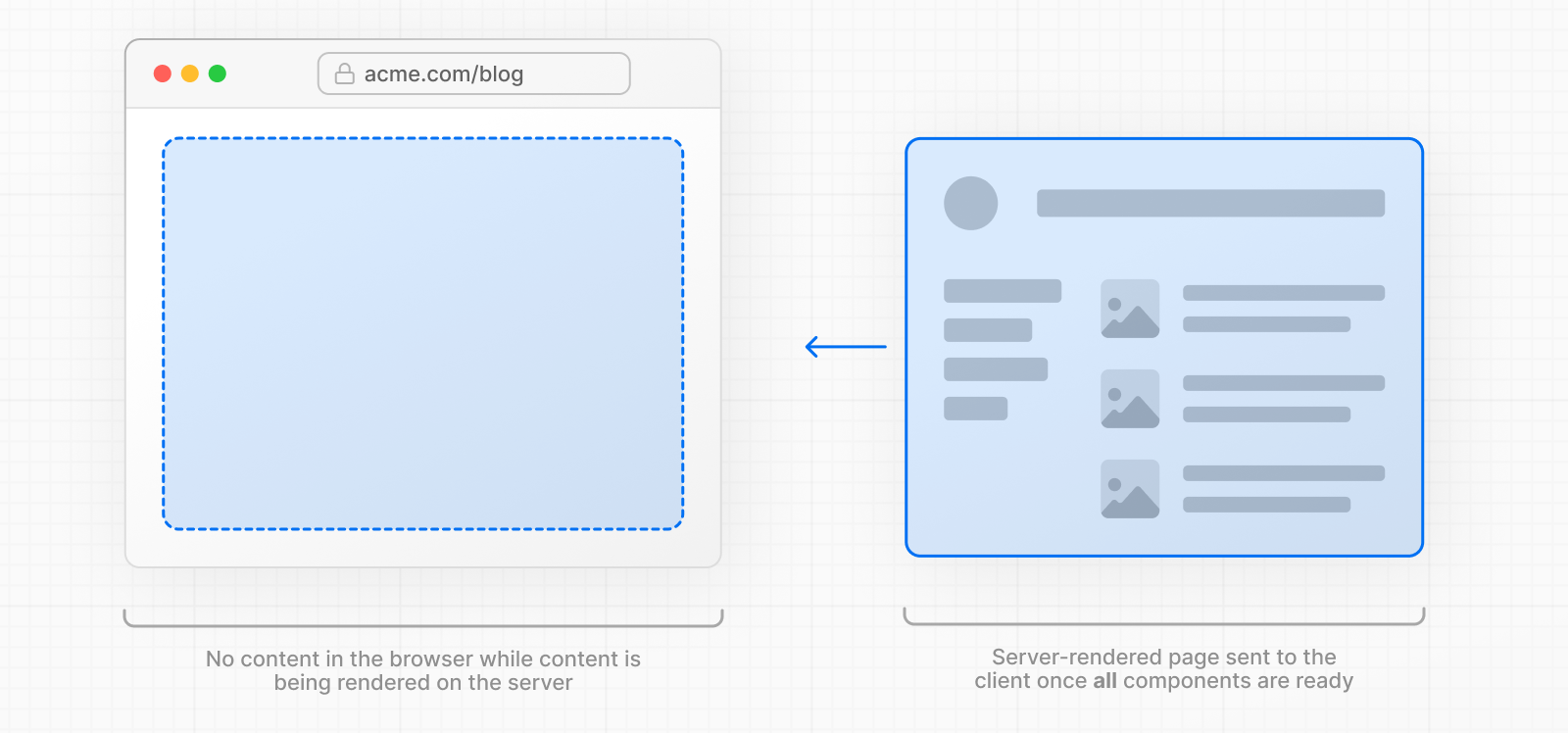
To improve the navigation experience to dynamic routes, you can use streaming.
Streaming
Streaming allows the server to send parts of a dynamic route to the client as soon as they're ready, rather than waiting for the entire route to be rendered. This means users see something sooner, even if parts of the page are still loading.
For dynamic routes, it means they can be partially prefetched. That is, shared layouts and loading skeletons can be requested ahead of time.
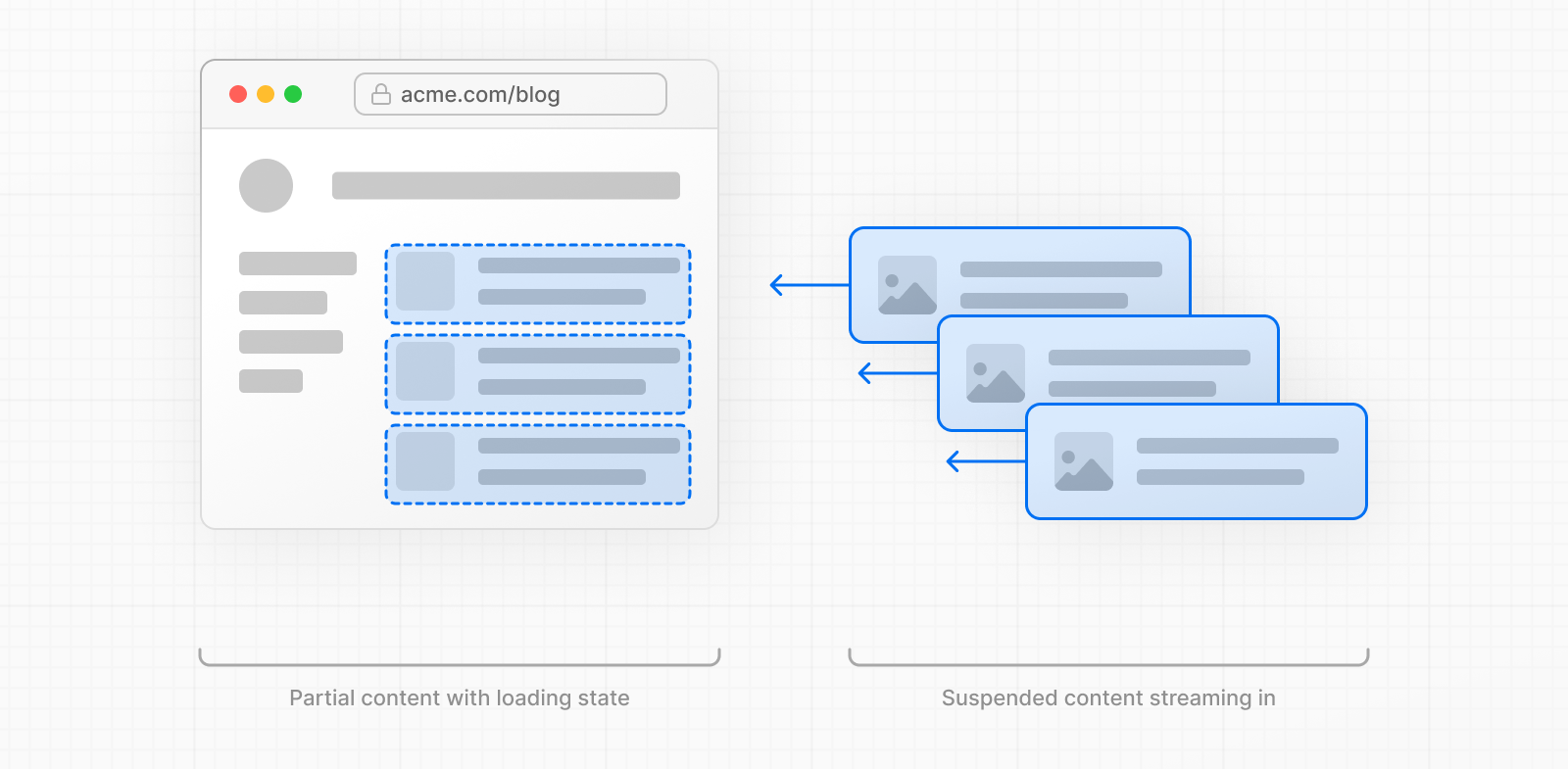
To use streaming, create a loading.tsx in your route folder:
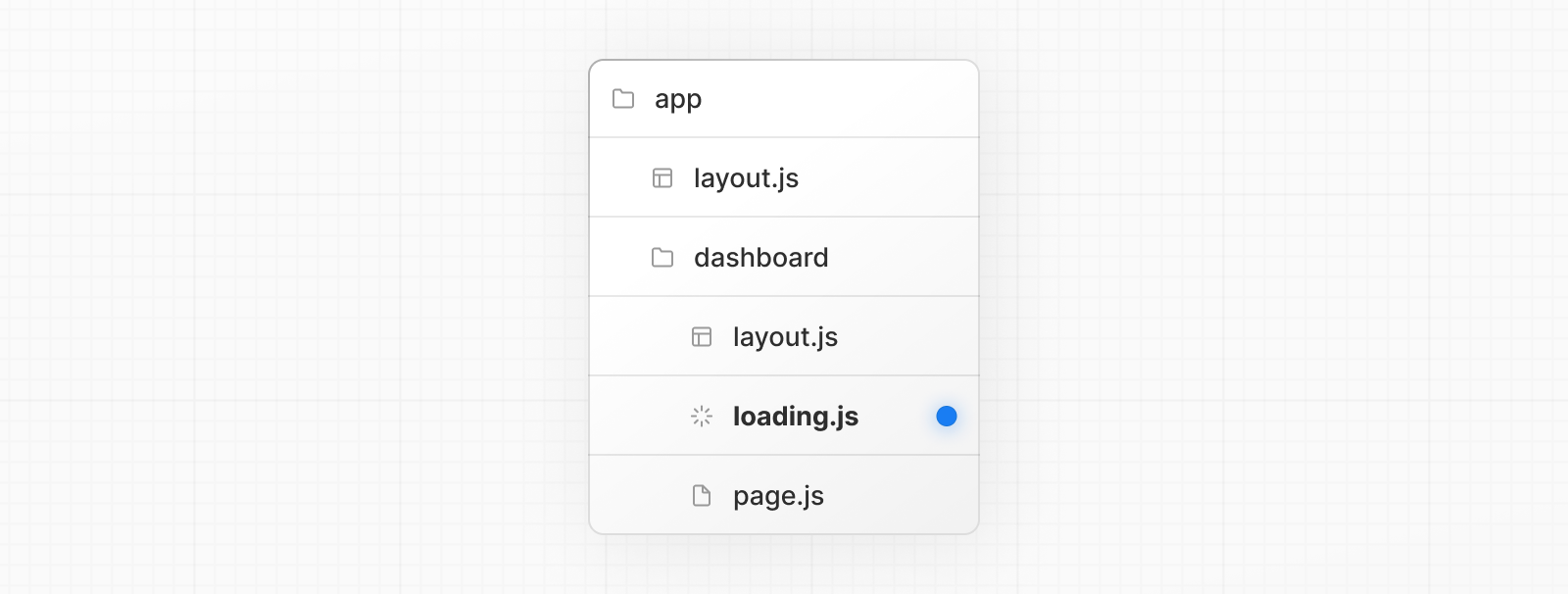
export default function Loading() {
  // Add fallback UI that will be shown while the route is loading.
  return <LoadingSkeleton />;
}
export default function Loading() {
  // Add fallback UI that will be shown while the route is loading.
  return <LoadingSkeleton />;
}
Behind the scenes, Next.js will automatically wrap the page.tsx contents in a <Suspense> boundary. The prefetched fallback UI will be shown while the route is loading, and swapped for the actual content once ready.
Good to know: You can also use
<Suspense>to create loading UI for nested components.
Benefits of loading.tsx:
- Immediate navigation and visual feedback for the user.
- Shared layouts remain interactive and navigation is interruptible.
- Improved Core Web Vitals: TTFB, FCP, and TTI.
To further improve the navigation experience, Next.js performs a client-side transition with the <Link> component.
Client-side transitions
Traditionally, navigation to a server-rendered page triggers a full page load. This clears state, resets scroll position, and blocks interactivity.
Next.js avoids this with client-side transitions using the <Link> component. Instead of reloading the page, it updates the content dynamically by:
- Keeping any shared layouts and UI.
- Replacing the current page with the prefetched loading state or a new page if available.
Client-side transitions are what makes a server-rendered apps feel like client-rendered apps. And when paired with prefetching and streaming, it enables fast transitions, even for dynamic routes.
What can make transitions slow?
These Next.js optimizations make navigation fast and responsive. However, under certain conditions, transitions can still feel slow. Here are some common causes and how to improve the user experience:
Dynamic routes without loading.tsx
When navigating to a dynamic route, the client must wait for the server response before showing the result. This can give the users the impression that the app is not responding.
We recommend adding loading.tsx to dynamic routes to enable partial prefetching, trigger immediate navigation, and display a loading UI while the route renders.
export default function Loading() {
  return <LoadingSkeleton />;
}
export default function Loading() {
  return <LoadingSkeleton />;
}
Good to know: In development mode, you can use the Next.js Devtools to identify if the route is static or dynamic. See
devIndicatorsfor more information.
Dynamic segments without generateStaticParams
If a dynamic segment could be prerendered but isn't because it's missing generateStaticParams, the route will fallback to dynamic rendering at request time.
Ensure the route is statically generated at build time by adding generateStaticParams:
export async function generateStaticParams() {
  const posts = await fetch('https://.../posts').then((res) => res.json());

  return posts.map((post) => ({
    slug: post.slug,
  }));
}

export default async function Page({ params }: { params: Promise<{ slug: string }> }) {
  const { slug } = await params;
  // ...
}
export async function generateStaticParams() {
  const posts = await fetch('https://.../posts').then((res) => res.json())

  return posts.map((post) => ({
    slug: post.slug,
  }))

export default async function Page({ params }) {
  const { slug } = await params
  // ...
}
Slow networks
On slow or unstable networks, prefetching may not finish before the user clicks a link. This can affect both static and dynamic routes. In these cases, the loading.js fallback may not appear immediately because it hasn't been prefetched yet.
To improve perceived performance, you can use the useLinkStatus hook to show immediate feedback while the transition is in progress.
'use client';

import { useLinkStatus } from 'next/link';

export default function LoadingIndicator() {
  const { pending } = useLinkStatus();
  return <span aria-hidden className={`link-hint ${pending ? 'is-pending' : ''}`} />;
}
'use client';

import { useLinkStatus } from 'next/link';

export default function LoadingIndicator() {
  const { pending } = useLinkStatus();
  return <span aria-hidden className={`link-hint ${pending ? 'is-pending' : ''}`} />;
}
You can "debounce" the hint by adding an initial animation delay (e.g. 100ms) and starting as invisible (e.g. opacity: 0). This means the loading indicator will only be shown if the navigation takes longer than the specified delay. See the useLinkStatus reference for a CSS example.
Good to know: You can use other visual feedback patterns like a progress bar. View an example here.
Disabling prefetching
You can opt out of prefetching by setting the prefetch prop to false on the <Link> component. This is useful to avoid unnecessary usage of resources when rendering large lists of links (e.g. an infinite scroll table).
<Link prefetch={false} href="/blog">
  Blog
</Link>
However, disabling prefetching comes with trade-offs:
- Static routes will only be fetched when the user clicks the link.
- Dynamic routes will need to be rendered on the server first before the client can navigate to it.
To reduce resource usage without fully disabling prefetch, you can prefetch only on hover. This limits prefetching to routes the user is more likely to visit, rather than all links in the viewport.
'use client';

import Link from 'next/link';
import { useState } from 'react';

function HoverPrefetchLink({ href, children }: { href: string; children: React.ReactNode }) {
  const [active, setActive] = useState(false);

  return (
    <Link href={href} prefetch={active ? null : false} onMouseEnter={() => setActive(true)}>
      {children}
    </Link>
  );
}
'use client';

import Link from 'next/link';
import { useState } from 'react';

function HoverPrefetchLink({ href, children }) {
  const [active, setActive] = useState(false);

  return (
    <Link href={href} prefetch={active ? null : false} onMouseEnter={() => setActive(true)}>
      {children}
    </Link>
  );
}
Hydration not completed
<Link> is a Client Component and must be hydrated before it can prefetch routes. On the initial visit, large JavaScript bundles can delay hydration, preventing prefetching from starting right away.
React mitigates this with Selective Hydration and you can further improve this by:
- Using the
@next/bundle-analyzerplugin to identify and reduce bundle size by removing large dependencies. - Moving logic from the client to the server where possible. See the Server and Client Components docs for guidance.
Examples
Native History API
Next.js allows you to use the native window.history.pushState and window.history.replaceState methods to update the browser's history stack without reloading the page.
pushState and replaceState calls integrate into the Next.js Router, allowing you to sync with usePathname and useSearchParams.
window.history.pushState
Use it to add a new entry to the browser's history stack. The user can navigate back to the previous state. For example, to sort a list of products:
'use client';

import { useSearchParams } from 'next/navigation';

export default function SortProducts() {
  const searchParams = useSearchParams();

  function updateSorting(sortOrder: string) {
    const params = new URLSearchParams(searchParams.toString());
    params.set('sort', sortOrder);
    window.history.pushState(null, '', `?${params.toString()}`);
  }

  return (
    <>
      <button onClick={() => updateSorting('asc')}>Sort Ascending</button>
      <button onClick={() => updateSorting('desc')}>Sort Descending</button>
    </>
  );
}
'use client';

import { useSearchParams } from 'next/navigation';

export default function SortProducts() {
  const searchParams = useSearchParams();

  function updateSorting(sortOrder) {
    const params = new URLSearchParams(searchParams.toString());
    params.set('sort', sortOrder);
    window.history.pushState(null, '', `?${params.toString()}`);
  }

  return (
    <>
      <button onClick={() => updateSorting('asc')}>Sort Ascending</button>
      <button onClick={() => updateSorting('desc')}>Sort Descending</button>
    </>
  );
}
window.history.replaceState
Use it to replace the current entry on the browser's history stack. The user is not able to navigate back to the previous state. For example, to switch the application's locale:
'use client';

import { usePathname } from 'next/navigation';

export function LocaleSwitcher() {
  const pathname = usePathname();

  function switchLocale(locale: string) {
    // e.g. '/en/about' or '/fr/contact'
    const newPath = `/${locale}${pathname}`;
    window.history.replaceState(null, '', newPath);
  }

  return (
    <>
      <button onClick={() => switchLocale('en')}>English</button>
      <button onClick={() => switchLocale('fr')}>French</button>
    </>
  );
}
'use client';

import { usePathname } from 'next/navigation';

export function LocaleSwitcher() {
  const pathname = usePathname();

  function switchLocale(locale) {
    // e.g. '/en/about' or '/fr/contact'
    const newPath = `/${locale}${pathname}`;
    window.history.replaceState(null, '', newPath);
  }

  return (
    <>
      <button onClick={() => switchLocale('en')}>English</button>
      <button onClick={() => switchLocale('fr')}>French</button>
    </>
  );
}
How navigation works
아래에서 Static과 Dynamic 렌더링을 전환하고 파이프라인을 단계별로 진행해보세요. 각 단계마다 브라우저 목업이 변화하며, 렌더링이 '언제' 일어나는지 시각적으로 확인할 수 있습니다.
- Layout과 Page는 기본적으로 React Server Component로 서버에서 렌더링
- Static Rendering — 빌드 시(또는 revalidation 시) 렌더링, 결과 캐시
- Dynamic Rendering — 요청 시 렌더링, 매번 새로운 데이터
- Server Component Payload가 서버에서 클라이언트로 전송됨
왜 필요한가: 서버 렌더링의 타이밍을 이해하지 못하면, 왜 어떤 페이지는 즉시 표시되고 어떤 페이지는 느린지 판단할 수 없습니다. 이 이해가 prefetching과 streaming 최적화의 기반입니다.
언제 사용하는가: 모든 Next.js 라우트가 기본적으로 서버 렌더링됩니다. Static은 캐시 가능한 콘텐츠에, Dynamic은 사용자별/요청별 데이터에 적합합니다.
Static 렌더링 파이프라인
next build 시 페이지를 미리 렌더링하여 HTML과 RSC Payload 생성
라우트 세그먼트: /dashboard
빌드 중 — HTML 생성
클라이언트 대기 시간
캐시 응답 → 거의 즉시
렌더링 시점
빌드 시 또는 revalidation 시
캐싱
결과가 캐시되어 재사용
Prefetch 동작
전체 라우트가 prefetch됨
사용 예시
블로그, 마케팅, 문서
app/layout.tsx — Server Component (기본)
import Link from 'next/link'

export default function Layout({ children }: { children: React.ReactNode }) {
  return (
    <html>
      <body>
        <nav>
          {/* Link는 viewport 진입 시 자동 prefetch */}
          <Link href="/blog">Blog</Link>
          {/* <a>는 prefetch 없음 */}
          <a href="/contact">Contact</a>
        </nav>
        {children}
      </body>
    </html>
  )
}
참고: 초기 방문 시에는 HTML도 함께 생성됩니다. 서버 렌더링의 trade-off(응답 대기)를 Next.js는 prefetching과 client-side transitions으로 해결합니다. 실제 렌더링 타입 확인은 DevTools 또는 Next.js Devtools에서 가능합니다.
How navigation works
4가지 prefetch 모드를 전환하면서 링크에 마우스를 올려보세요. 모드에 따라 prefetch 동작이 다르게 시뮬레이션됩니다. false 모드에서는 hover에 반응하지 않고 클릭 시에만 로딩됩니다.
- <Link>가 viewport에 진입하면 자동으로 prefetch 시작
- Static Route → 전체 라우트 prefetch (즉시 전환)
- Dynamic Route + loading.tsx → 부분 prefetch (skeleton 먼저 표시)
- Dynamic Route without loading.tsx → prefetch 생략 (서버 응답 대기)
왜 필요한가: prefetch 없이는 매 클릭마다 서버 응답을 기다려야 합니다. prefetch 덕분에 사용자가 클릭하는 순간 이미 데이터가 준비되어 있어 즉각적인 전환이 가능합니다.
언제 사용하는가: <Link> 컴포넌트를 사용하면 자동 적용됩니다. Dynamic 라우트에서 빠른 전환이 필요하면 loading.tsx를 추가하세요.
정적 라우트는 완전히 프리페치됩니다. 동적 라우트는 가장 가까운 loading.tsx 바운더리까지 프리페치됩니다.
대부분의 애플리케이션에 최적 — 성능과 데이터 신선도의 균형.
링크 (hover로 prefetch)
Prefetch 로그
링크에 마우스를 올리면 prefetch 로그가 표시됩니다
Prefetch 동작 비교
Static Route
전체 prefetch → 즉시 전환
Dynamic + loading.tsx
부분 prefetch → skeleton 먼저
Dynamic only
prefetch 생략 → 서버 대기
코드 예시
import Link from 'next/link'

const Layout = (props: { children: React.ReactNode }) => {
  const { children } = props

  return (
    <nav>
      <Link href="/about">About</Link>
      <Link href="/blog">Blog</Link>
      <Link href="/dashboard">Dashboard</Link>
    </nav>
    {children}
  )
}
참고: prefetch는 production 빌드에서 완전히 동작합니다. <a> 태그를 사용하면 prefetch가 적용되지 않습니다.
How navigation works
loading.tsx 토글을 전환한 뒤 '네비게이션 시작'을 클릭하세요. loading.tsx가 있으면 5개 청크가 순차적으로 등장하며 브라우저가 점진적으로 빌드되지만, 없으면 전체 렌더링이 끝날 때까지 빈 화면입니다.
- Streaming — 서버가 준비된 부분부터 클라이언트에 점진적 전송
- loading.tsx → Next.js가 자동으로 page.tsx를 <Suspense>로 래핑
- Dynamic 라우트의 부분 prefetch 활성화 (layout + loading skeleton)
- CWV 개선: TTFB, FCP, TTI 향상
왜 필요한가: streaming 없이 dynamic 라우트를 방문하면, 전체 렌더링이 완료될 때까지 사용자는 빈 화면을 봅니다. loading.tsx 하나로 즉시 시각적 피드백을 제공합니다.
언제 사용하는가: dynamic 라우트(DB 쿼리, 외부 API 호출)에서 사용자에게 즉각적 피드백이 필요할 때 loading.tsx를 추가합니다.
서버 청크 (5개)
"네비게이션 시작"을 클릭하세요
네비게이션을 시작하세요
첫 화면 표시까지
app/dashboard/loading.tsx
export default function Loading() {
  // Next.js가 자동으로 page.tsx를
  // <Suspense fallback={<Loading />}> 로 래핑합니다.
  return <LoadingSkeleton />
}
참고: <Suspense>를 직접 사용하여 중첩 컴포넌트에도 개별 loading UI를 적용할 수 있습니다. Streaming은 공유 layout을 interactive하게 유지하고 네비게이션을 interruptible하게 만듭니다.
How navigation works
전환 모드를 선택한 뒤 layout의 카운터를 올리고 입력란에 텍스트를 입력하세요. 다른 페이지로 이동하면 Client-side 모드에서는 layout 상태가 유지되지만, Traditional 모드에서는 모든 상태가 초기화됩니다.
- Client-side transition — 공유 layout/UI 유지, page 콘텐츠만 교체
- Traditional navigation — full page reload, 모든 상태 초기화
- prefetching + streaming과 결합하면 dynamic 라우트도 빠른 전환
- <Link> 컴포넌트가 client-side transition을 자동 수행
왜 필요한가: full page reload는 스크롤 위치, 입력값, 카운터 등 모든 UI 상태를 날립니다. client-side transition이 서버 렌더링의 장점과 SPA UX를 동시에 제공합니다.
언제 사용하는가: Next.js에서 <Link>를 사용하면 자동 적용됩니다. <a>는 full reload이므로, 내부 링크에는 항상 <Link>를 사용하세요.
같은 부모(dashboard) 아래 형제 페이지 이동 — 루트 + 대시보드 레이아웃 유지
브라우저 시뮬레이션
Home 페이지 내용
라우트 트리: /dashboard/settings
핵심: Client-side transition + prefetching + streaming = 서버 렌더링 앱에서 SPA 수준의 빠른 전환. 이 세 가지가 Next.js 네비게이션 최적화의 기반입니다.
What can make transitions slow?
loading.tsx 토글을 전환하면서 블로그 포스트를 클릭해보세요. loading.tsx 없이는 서버 응답이 올 때까지 페이지가 프리즈되지만, loading.tsx를 추가하면 즉시 skeleton이 표시됩니다.
- dynamic 라우트에 loading.tsx 없으면 → 서버 응답 대기 동안 무반응
- loading.tsx 추가 → 부분 prefetch 활성화 + 즉시 skeleton 표시
- 사용자에게 "앱이 응답 중" 시각적 피드백 제공
- devIndicators로 라우트가 static/dynamic인지 확인 가능
왜 필요한가: loading.tsx가 없는 dynamic 라우트는 클릭 후 아무 변화 없이 서버를 기다립니다. 사용자는 클릭이 안 된 줄 알고 반복 클릭하거나 앱을 떠납니다.
언제 사용하는가: dynamic 라우트(DB 쿼리, 외부 API 의존)에는 항상 loading.tsx를 추가하세요. Next.js Devtools에서 라우트 타입을 확인할 수 있습니다.
블로그 포스트
파일 구조
app/
└── blog/
    └── [slug]/
├── page.tsx ← dynamic (DB 쿼리)블로그 글
Understanding Next.js Routing
App Router와 파일 기반 라우팅에 대한 심층 분석.
React Server Components
RSC가 렌더링 사고방식을 어떻게 바꾸는지.
Streaming SSR with Suspense
더 빠른 페이지 로딩을 위한 점진적 렌더링.
app/blog/[slug]/loading.tsx
export default function Loading() {
  return <LoadingSkeleton />
}
참고: 개발 모드에서 Next.js Devtools를 사용하면 라우트가 static인지 dynamic인지 확인할 수 있습니다. devIndicators 설정을 참고하세요.
What can make transitions slow?
generateStaticParams 토글을 전환하면서 블로그 포스트를 클릭해보세요. generateStaticParams가 있으면 빌드 시 미리 렌더링된 페이지는 ~100ms로 즉시 로드되지만, 없으면 ~1800ms 서버 렌더링을 기다려야 합니다.
- generateStaticParams → 빌드 시 dynamic segment를 정적 생성
- 정적 생성된 페이지는 prefetch + 캐시로 즉시 전환
- generateStaticParams 없으면 → 요청마다 dynamic rendering
- 알려진 모든 경로를 반환하면 빌드 시 미리 생성
왜 필요한가: dynamic segment가 prerender 가능한데도 generateStaticParams가 없으면, 매 요청마다 서버에서 렌더링하여 불필요한 대기가 발생합니다.
언제 사용하는가: 블로그 포스트, 제품 페이지 등 빌드 시점에 모든 경로를 알 수 있는 dynamic segment에 사용합니다.
/blog/[slug] 페이지
빌드 시 생성 상태
페이지 로드 프리뷰
블로그 포스트를 클릭하세요
전환 속도 비교
app/blog/[slug]/page.tsx
// generateStaticParams 없음 → 모든 slug가 dynamic rendering

export default async function Page({
  params,
}: {
  params: Promise<{ slug: string }>
}) {
  const { slug } = await params
  // ...
}
비교: generateStaticParams는 렌더링 시점을 빌드 시로 변경하고, loading.tsx는 dynamic 렌더링을 유지하되 대기 경험을 개선합니다. 두 가지를 함께 사용할 수도 있습니다.
What can make transitions slow?
네트워크 속도를 느리게 설정한 뒤 '링크 클릭'을 눌러보세요. 5단계 파이프라인이 자동 재생되며, 속도에 따라 각 단계의 지연이 달라집니다. useLinkStatus 토글로 로딩 인디케이터 유무에 따른 체감 차이를 확인하세요.
- 느린 네트워크에서 prefetch가 완료되기 전에 클릭 → loading.js fallback도 안 나올 수 있음
- useLinkStatus hook의 pending 상태로 즉각적 시각 피드백 제공
- CSS animation-delay로 debounce 가능 (빠른 네비게이션에서 깜빡임 방지)
- progress bar 등 다른 시각 패턴도 사용 가능
왜 필요한가: 느린 네트워크에서 클릭 후 아무 반응 없으면 사용자는 클릭이 안 된 줄 알고 반복 클릭합니다. useLinkStatus로 즉각 피드백을 주면 체감 성능이 크게 개선됩니다.
언제 사용하는가: 느린 네트워크 환경의 사용자가 많은 앱, 또는 prefetch가 느린 무거운 라우트에서 useLinkStatus를 사용합니다.
요청 파이프라인
현재 페이지
클릭하여 네비게이션 시작
체감 경험
네트워크
빠름 (4G) — ~600ms
Prefetch
Complete클릭 시 피드백
피드백 없음
app/ui/loading-indicator.tsx
'use client'

import { useLinkStatus } from 'next/link'

export default function LoadingIndicator() {
  const { pending } = useLinkStatus()
  return (
    <span
      aria-hidden
      className={`link-hint ${pending ? 'is-pending' : ''}`}
    />
  )
}
팁: CSS animation-delay(예: 100ms)를 추가하면 빠른 네비게이션에서 인디케이터가 깜빡이는 것을 방지할 수 있습니다. progress bar 패턴도 사용 가능합니다.
What can make transitions slow?
세 가지 prefetch 모드를 전환하면서 링크와 상호작용해보세요. 오른쪽 네트워크 워터폴에서 모드에 따라 요청 패턴이 어떻게 달라지는지 확인할 수 있습니다.
- prefetch={false} → viewport 진입 시 prefetch 비활성화
- 비활성화 시 static route도 클릭 시점에 fetch
- hover-only prefetch → 리소스 절약 + 의도적 방문에만 prefetch
- 무한 스크롤 테이블 등 대량 링크에서 유용
왜 필요한가: 대량의 링크가 있는 페이지에서 모든 링크를 prefetch하면 불필요한 네트워크 리소스를 소비합니다. 하지만 완전히 비활성화하면 전환이 느려지므로 적절한 절충이 필요합니다.
언제 사용하는가: 대량의 링크 목록(무한 스크롤, 검색 결과 등)에서 리소스를 절약하고 싶을 때. hover-only가 가장 균형 잡힌 선택입니다.
상품 목록 (5개 링크)
0/5 prefetched목록에 마우스를 올려 viewport 진입을 시뮬레이션하세요
네트워크 워터폴
리소스 사용량
기본 prefetch (코드 변경 불필요)
import Link from 'next/link'

// 기본 동작 — prefetch prop 없음
<Link href="/products/1">Product 1</Link>
// viewport 진입 시 자동 prefetch
trade-off: prefetch={false}로 비활성화하면 static route도 클릭 시점에 fetch되고, dynamic route는 서버 렌더링을 기다려야 합니다. hover-only 방식이 가장 균형 잡힌 대안입니다.
What can make transitions slow?
번들 크기를 변경한 뒤 '자동 재생'을 클릭하세요. 5단계 hydration 과정을 단계별로 체험하며, 번들이 클수록 JS 다운로드/파싱/Hydration에서 오래 머무르는 것을 확인할 수 있습니다. 브라우저 목업에서 링크가 회색(비활성)→파란색(활성) 변하는 타이밍이 핵심입니다.
- <Link>는 Client Component → hydration 완료 후에야 prefetch 가능
- 큰 JS 번들 → hydration 지연 → prefetch 시작 지연
- React Selective Hydration으로 부분 완화 가능
- @next/bundle-analyzer로 번들 크기 분석 + 불필요한 의존성 제거
왜 필요한가: 초기 방문 시 hydration이 느리면 사용자가 링크를 클릭해도 prefetch된 데이터가 없어 서버 응답을 기다려야 합니다. 번들 최적화가 네비게이션 성능에 직접적으로 영향을 미칩니다.
언제 사용하는가: 초기 로드가 느리거나 Lighthouse 점수가 낮을 때, @next/bundle-analyzer로 번들을 분석하고 클라이언트 로직을 서버로 이동시키세요.
Hydration 파이프라인
자동 재생을 시작하세요
Hydration 시간 비교
1. 번들 분석
@next/bundle-analyzer로 큰 의존성 식별
2. 서버로 이동
클라이언트 로직을 Server Component로
3. Selective Hydration
우선순위 높은 컴포넌트부터 hydrate
참고: 이 문제는 초기 방문에서만 발생합니다. 이후 네비게이션에서는 이미 hydration이 완료된 상태이므로 prefetch가 즉시 동작합니다. Server Component를 최대한 활용하면 클라이언트 번들을 줄일 수 있습니다.
Examples
pushState와 replaceState를 전환한 뒤 시나리오 자동재생을 실행하거나, 직접 정렬 버튼을 클릭해보세요. pushState는 history에 새 항목을 추가하여 뒤로가기가 가능하지만, replaceState는 현재 항목을 교체하여 이전 상태로 돌아갈 수 없습니다.
- window.history.pushState — 새 history entry 추가 (뒤로가기 가능)
- window.history.replaceState — 현재 entry 교체 (뒤로가기 불가)
- Next.js Router와 통합 — usePathname, useSearchParams와 동기화
- 페이지 리로드 없이 URL 업데이트
왜 필요한가: URL을 업데이트하면서 페이지를 리로드하지 않으면, 필터/정렬 상태를 URL에 반영하여 공유 가능하고 새로고침해도 상태가 유지됩니다. 적절한 history 관리로 뒤로가기 UX도 보장됩니다.
언제 사용하는가: 검색 필터, 정렬 순서, 로케일 전환 등 서버 요청 없이 URL을 업데이트하고 싶을 때 사용합니다. 뒤로가기가 필요하면 pushState, 불필요하면 replaceState.
시나리오: 정렬 3회 변경 → 뒤로가기 2회
정렬: asc 클릭
정렬: desc 클릭
정렬: price 클릭
← 뒤로가기
← 뒤로가기
상품 목록
정렬: default · History: 1 entries · 현재 위치: 0
History Stack (1 entries)
index: 0pushState: 정렬 변경마다 새 entry가 추가됩니다. 뒤로가기(←)로 이전 정렬 상태를 복원할 수 있습니다.
pushState — 정렬 필터 예시
'use client'
import { useSearchParams } from 'next/navigation'

export default function SortProducts() {
  const searchParams = useSearchParams()

  function updateSorting(sortOrder: string) {
    const params = new URLSearchParams(
      searchParams.toString()
    )
    params.set('sort', sortOrder)
    window.history.pushState(
      null, '', `?${params.toString()}`
    )
  }
  // ...
}
통합: pushState와 replaceState는 Next.js Router와 통합됩니다. usePathname, useSearchParams와 동기화되어 URL 변경이 컴포넌트에 반영됩니다. 정렬처럼 뒤로가기가 유용하면 pushState, 로케일처럼 중복 entry가 불필요하면 replaceState를 사용하세요.
In Next.js, routes are rendered on the server by default. This often means the client has to wait for a server response before a new route can be shown. Next.js comes with built-in prefetching, streaming, and client-side transitions ensuring navigation stays fast and responsive.
This guide explains how navigation works in Next.js and how you can optimize it for dynamic routes and slow networks.
How navigation works
To understand how navigation works in Next.js, it helps to be familiar with the following concepts:
Server Rendering
In Next.js, Layouts and Pages are React Server Components by default. On initial and subsequent navigations, the Server Component Payload is generated on the server before being sent to the client.
There are two types of server rendering, based on when it happens:
- Static Rendering (or Prerendering) happens at build time or during revalidation and the result is cached.
- Dynamic Rendering happens at request time in response to a client request.
The trade-off of server rendering is that the client must wait for the server to respond before the new route can be shown. Next.js addresses this delay by prefetching routes the user is likely to visit and performing client-side transitions.
Good to know: HTML is also generated for the initial visit.
Prefetching
Prefetching is the process of loading a route in the background before the user navigates to it. This makes navigation between routes in your application feel instant, because by the time a user clicks on a link, the data to render the next route is already available client side.
Next.js automatically prefetches routes linked with the <Link> component when they enter the user's viewport.
import Link from 'next/link';

export default function Layout({ children }: { children: React.ReactNode }) {
  return (
    <html>
      <body>
        <nav>
          {/* Prefetched when the link is hovered or enters the viewport */}
          <Link href="/blog">Blog</Link>
          {/* No prefetching */}
          <a href="/contact">Contact</a>
        </nav>
        {children}
      </body>
    </html>
  );
}
import Link from 'next/link';

export default function Layout() {
  return (
    <html>
      <body>
        <nav>
          {/* Prefetched when the link is hovered or enters the viewport */}
          <Link href="/blog">Blog</Link>
          {/* No prefetching */}
          <a href="/contact">Contact</a>
        </nav>
        {children}
      </body>
    </html>
  );
}
How much of the route is prefetched depends on whether it's static or dynamic:
- Static Route: the full route is prefetched.
- Dynamic Route: prefetching is skipped, or the route is partially prefetched if
loading.tsxis present.
By skipping or partially prefetching dynamic routes, Next.js avoids unnecessary work on the server for routes the users may never visit. However, waiting for a server response before navigation can give the users the impression that the app is not responding.
To improve the navigation experience to dynamic routes, you can use streaming.
Streaming
Streaming allows the server to send parts of a dynamic route to the client as soon as they're ready, rather than waiting for the entire route to be rendered. This means users see something sooner, even if parts of the page are still loading.
For dynamic routes, it means they can be partially prefetched. That is, shared layouts and loading skeletons can be requested ahead of time.
To use streaming, create a loading.tsx in your route folder:
export default function Loading() {
  // Add fallback UI that will be shown while the route is loading.
  return <LoadingSkeleton />;
}
export default function Loading() {
  // Add fallback UI that will be shown while the route is loading.
  return <LoadingSkeleton />;
}
Behind the scenes, Next.js will automatically wrap the page.tsx contents in a <Suspense> boundary. The prefetched fallback UI will be shown while the route is loading, and swapped for the actual content once ready.
Good to know: You can also use
<Suspense>to create loading UI for nested components.
Benefits of loading.tsx:
- Immediate navigation and visual feedback for the user.
- Shared layouts remain interactive and navigation is interruptible.
- Improved Core Web Vitals: TTFB, FCP, and TTI.
To further improve the navigation experience, Next.js performs a client-side transition with the <Link> component.
Client-side transitions
Traditionally, navigation to a server-rendered page triggers a full page load. This clears state, resets scroll position, and blocks interactivity.
Next.js avoids this with client-side transitions using the <Link> component. Instead of reloading the page, it updates the content dynamically by:
- Keeping any shared layouts and UI.
- Replacing the current page with the prefetched loading state or a new page if available.
Client-side transitions are what makes a server-rendered apps feel like client-rendered apps. And when paired with prefetching and streaming, it enables fast transitions, even for dynamic routes.
What can make transitions slow?
These Next.js optimizations make navigation fast and responsive. However, under certain conditions, transitions can still feel slow. Here are some common causes and how to improve the user experience:
Dynamic routes without loading.tsx
When navigating to a dynamic route, the client must wait for the server response before showing the result. This can give the users the impression that the app is not responding.
We recommend adding loading.tsx to dynamic routes to enable partial prefetching, trigger immediate navigation, and display a loading UI while the route renders.
export default function Loading() {
  return <LoadingSkeleton />;
}
export default function Loading() {
  return <LoadingSkeleton />;
}
Good to know: In development mode, you can use the Next.js Devtools to identify if the route is static or dynamic. See
devIndicatorsfor more information.
Dynamic segments without generateStaticParams
If a dynamic segment could be prerendered but isn't because it's missing generateStaticParams, the route will fallback to dynamic rendering at request time.
Ensure the route is statically generated at build time by adding generateStaticParams:
export async function generateStaticParams() {
  const posts = await fetch('https://.../posts').then((res) => res.json());

  return posts.map((post) => ({
    slug: post.slug,
  }));
}

export default async function Page({ params }: { params: Promise<{ slug: string }> }) {
  const { slug } = await params;
  // ...
}
export async function generateStaticParams() {
  const posts = await fetch('https://.../posts').then((res) => res.json())

  return posts.map((post) => ({
    slug: post.slug,
  }))

export default async function Page({ params }) {
  const { slug } = await params
  // ...
}
Slow networks
On slow or unstable networks, prefetching may not finish before the user clicks a link. This can affect both static and dynamic routes. In these cases, the loading.js fallback may not appear immediately because it hasn't been prefetched yet.
To improve perceived performance, you can use the useLinkStatus hook to show immediate feedback while the transition is in progress.
'use client';

import { useLinkStatus } from 'next/link';

export default function LoadingIndicator() {
  const { pending } = useLinkStatus();
  return <span aria-hidden className={`link-hint ${pending ? 'is-pending' : ''}`} />;
}
'use client';

import { useLinkStatus } from 'next/link';

export default function LoadingIndicator() {
  const { pending } = useLinkStatus();
  return <span aria-hidden className={`link-hint ${pending ? 'is-pending' : ''}`} />;
}
You can "debounce" the hint by adding an initial animation delay (e.g. 100ms) and starting as invisible (e.g. opacity: 0). This means the loading indicator will only be shown if the navigation takes longer than the specified delay. See the useLinkStatus reference for a CSS example.
Good to know: You can use other visual feedback patterns like a progress bar. View an example here.
Disabling prefetching
You can opt out of prefetching by setting the prefetch prop to false on the <Link> component. This is useful to avoid unnecessary usage of resources when rendering large lists of links (e.g. an infinite scroll table).
<Link prefetch={false} href="/blog">
  Blog
</Link>
However, disabling prefetching comes with trade-offs:
- Static routes will only be fetched when the user clicks the link.
- Dynamic routes will need to be rendered on the server first before the client can navigate to it.
To reduce resource usage without fully disabling prefetch, you can prefetch only on hover. This limits prefetching to routes the user is more likely to visit, rather than all links in the viewport.
'use client';

import Link from 'next/link';
import { useState } from 'react';

function HoverPrefetchLink({ href, children }: { href: string; children: React.ReactNode }) {
  const [active, setActive] = useState(false);

  return (
    <Link href={href} prefetch={active ? null : false} onMouseEnter={() => setActive(true)}>
      {children}
    </Link>
  );
}
'use client';

import Link from 'next/link';
import { useState } from 'react';

function HoverPrefetchLink({ href, children }) {
  const [active, setActive] = useState(false);

  return (
    <Link href={href} prefetch={active ? null : false} onMouseEnter={() => setActive(true)}>
      {children}
    </Link>
  );
}
Hydration not completed
<Link> is a Client Component and must be hydrated before it can prefetch routes. On the initial visit, large JavaScript bundles can delay hydration, preventing prefetching from starting right away.
React mitigates this with Selective Hydration and you can further improve this by:
- Using the
@next/bundle-analyzerplugin to identify and reduce bundle size by removing large dependencies. - Moving logic from the client to the server where possible. See the Server and Client Components docs for guidance.
Examples
Native History API
Next.js allows you to use the native window.history.pushState and window.history.replaceState methods to update the browser's history stack without reloading the page.
pushState and replaceState calls integrate into the Next.js Router, allowing you to sync with usePathname and useSearchParams.
window.history.pushState
Use it to add a new entry to the browser's history stack. The user can navigate back to the previous state. For example, to sort a list of products:
'use client';

import { useSearchParams } from 'next/navigation';

export default function SortProducts() {
  const searchParams = useSearchParams();

  function updateSorting(sortOrder: string) {
    const params = new URLSearchParams(searchParams.toString());
    params.set('sort', sortOrder);
    window.history.pushState(null, '', `?${params.toString()}`);
  }

  return (
    <>
      <button onClick={() => updateSorting('asc')}>Sort Ascending</button>
      <button onClick={() => updateSorting('desc')}>Sort Descending</button>
    </>
  );
}
'use client';

import { useSearchParams } from 'next/navigation';

export default function SortProducts() {
  const searchParams = useSearchParams();

  function updateSorting(sortOrder) {
    const params = new URLSearchParams(searchParams.toString());
    params.set('sort', sortOrder);
    window.history.pushState(null, '', `?${params.toString()}`);
  }

  return (
    <>
      <button onClick={() => updateSorting('asc')}>Sort Ascending</button>
      <button onClick={() => updateSorting('desc')}>Sort Descending</button>
    </>
  );
}
window.history.replaceState
Use it to replace the current entry on the browser's history stack. The user is not able to navigate back to the previous state. For example, to switch the application's locale:
'use client';

import { usePathname } from 'next/navigation';

export function LocaleSwitcher() {
  const pathname = usePathname();

  function switchLocale(locale: string) {
    // e.g. '/en/about' or '/fr/contact'
    const newPath = `/${locale}${pathname}`;
    window.history.replaceState(null, '', newPath);
  }

  return (
    <>
      <button onClick={() => switchLocale('en')}>English</button>
      <button onClick={() => switchLocale('fr')}>French</button>
    </>
  );
}
'use client';

import { usePathname } from 'next/navigation';

export function LocaleSwitcher() {
  const pathname = usePathname();

  function switchLocale(locale) {
    // e.g. '/en/about' or '/fr/contact'
    const newPath = `/${locale}${pathname}`;
    window.history.replaceState(null, '', newPath);
  }

  return (
    <>
      <button onClick={() => switchLocale('en')}>English</button>
      <button onClick={() => switchLocale('fr')}>French</button>
    </>
  );
}
How navigation works
아래에서 Static과 Dynamic 렌더링을 전환하고 파이프라인을 단계별로 진행해보세요. 각 단계마다 브라우저 목업이 변화하며, 렌더링이 '언제' 일어나는지 시각적으로 확인할 수 있습니다.
- Layout과 Page는 기본적으로 React Server Component로 서버에서 렌더링
- Static Rendering — 빌드 시(또는 revalidation 시) 렌더링, 결과 캐시
- Dynamic Rendering — 요청 시 렌더링, 매번 새로운 데이터
- Server Component Payload가 서버에서 클라이언트로 전송됨
왜 필요한가: 서버 렌더링의 타이밍을 이해하지 못하면, 왜 어떤 페이지는 즉시 표시되고 어떤 페이지는 느린지 판단할 수 없습니다. 이 이해가 prefetching과 streaming 최적화의 기반입니다.
언제 사용하는가: 모든 Next.js 라우트가 기본적으로 서버 렌더링됩니다. Static은 캐시 가능한 콘텐츠에, Dynamic은 사용자별/요청별 데이터에 적합합니다.
Static 렌더링 파이프라인
next build 시 페이지를 미리 렌더링하여 HTML과 RSC Payload 생성
라우트 세그먼트: /dashboard
빌드 중 — HTML 생성
클라이언트 대기 시간
캐시 응답 → 거의 즉시
렌더링 시점
빌드 시 또는 revalidation 시
캐싱
결과가 캐시되어 재사용
Prefetch 동작
전체 라우트가 prefetch됨
사용 예시
블로그, 마케팅, 문서
app/layout.tsx — Server Component (기본)
import Link from 'next/link'

export default function Layout({ children }: { children: React.ReactNode }) {
  return (
    <html>
      <body>
        <nav>
          {/* Link는 viewport 진입 시 자동 prefetch */}
          <Link href="/blog">Blog</Link>
          {/* <a>는 prefetch 없음 */}
          <a href="/contact">Contact</a>
        </nav>
        {children}
      </body>
    </html>
  )
}
참고: 초기 방문 시에는 HTML도 함께 생성됩니다. 서버 렌더링의 trade-off(응답 대기)를 Next.js는 prefetching과 client-side transitions으로 해결합니다. 실제 렌더링 타입 확인은 DevTools 또는 Next.js Devtools에서 가능합니다.
How navigation works
4가지 prefetch 모드를 전환하면서 링크에 마우스를 올려보세요. 모드에 따라 prefetch 동작이 다르게 시뮬레이션됩니다. false 모드에서는 hover에 반응하지 않고 클릭 시에만 로딩됩니다.
- <Link>가 viewport에 진입하면 자동으로 prefetch 시작
- Static Route → 전체 라우트 prefetch (즉시 전환)
- Dynamic Route + loading.tsx → 부분 prefetch (skeleton 먼저 표시)
- Dynamic Route without loading.tsx → prefetch 생략 (서버 응답 대기)
왜 필요한가: prefetch 없이는 매 클릭마다 서버 응답을 기다려야 합니다. prefetch 덕분에 사용자가 클릭하는 순간 이미 데이터가 준비되어 있어 즉각적인 전환이 가능합니다.
언제 사용하는가: <Link> 컴포넌트를 사용하면 자동 적용됩니다. Dynamic 라우트에서 빠른 전환이 필요하면 loading.tsx를 추가하세요.
정적 라우트는 완전히 프리페치됩니다. 동적 라우트는 가장 가까운 loading.tsx 바운더리까지 프리페치됩니다.
대부분의 애플리케이션에 최적 — 성능과 데이터 신선도의 균형.
링크 (hover로 prefetch)
Prefetch 로그
링크에 마우스를 올리면 prefetch 로그가 표시됩니다
Prefetch 동작 비교
Static Route
전체 prefetch → 즉시 전환
Dynamic + loading.tsx
부분 prefetch → skeleton 먼저
Dynamic only
prefetch 생략 → 서버 대기
코드 예시
import Link from 'next/link'

const Layout = (props: { children: React.ReactNode }) => {
  const { children } = props

  return (
    <nav>
      <Link href="/about">About</Link>
      <Link href="/blog">Blog</Link>
      <Link href="/dashboard">Dashboard</Link>
    </nav>
    {children}
  )
}
참고: prefetch는 production 빌드에서 완전히 동작합니다. <a> 태그를 사용하면 prefetch가 적용되지 않습니다.
How navigation works
loading.tsx 토글을 전환한 뒤 '네비게이션 시작'을 클릭하세요. loading.tsx가 있으면 5개 청크가 순차적으로 등장하며 브라우저가 점진적으로 빌드되지만, 없으면 전체 렌더링이 끝날 때까지 빈 화면입니다.
- Streaming — 서버가 준비된 부분부터 클라이언트에 점진적 전송
- loading.tsx → Next.js가 자동으로 page.tsx를 <Suspense>로 래핑
- Dynamic 라우트의 부분 prefetch 활성화 (layout + loading skeleton)
- CWV 개선: TTFB, FCP, TTI 향상
왜 필요한가: streaming 없이 dynamic 라우트를 방문하면, 전체 렌더링이 완료될 때까지 사용자는 빈 화면을 봅니다. loading.tsx 하나로 즉시 시각적 피드백을 제공합니다.
언제 사용하는가: dynamic 라우트(DB 쿼리, 외부 API 호출)에서 사용자에게 즉각적 피드백이 필요할 때 loading.tsx를 추가합니다.
서버 청크 (5개)
"네비게이션 시작"을 클릭하세요
네비게이션을 시작하세요
첫 화면 표시까지
app/dashboard/loading.tsx
export default function Loading() {
  // Next.js가 자동으로 page.tsx를
  // <Suspense fallback={<Loading />}> 로 래핑합니다.
  return <LoadingSkeleton />
}
참고: <Suspense>를 직접 사용하여 중첩 컴포넌트에도 개별 loading UI를 적용할 수 있습니다. Streaming은 공유 layout을 interactive하게 유지하고 네비게이션을 interruptible하게 만듭니다.
How navigation works
전환 모드를 선택한 뒤 layout의 카운터를 올리고 입력란에 텍스트를 입력하세요. 다른 페이지로 이동하면 Client-side 모드에서는 layout 상태가 유지되지만, Traditional 모드에서는 모든 상태가 초기화됩니다.
- Client-side transition — 공유 layout/UI 유지, page 콘텐츠만 교체
- Traditional navigation — full page reload, 모든 상태 초기화
- prefetching + streaming과 결합하면 dynamic 라우트도 빠른 전환
- <Link> 컴포넌트가 client-side transition을 자동 수행
왜 필요한가: full page reload는 스크롤 위치, 입력값, 카운터 등 모든 UI 상태를 날립니다. client-side transition이 서버 렌더링의 장점과 SPA UX를 동시에 제공합니다.
언제 사용하는가: Next.js에서 <Link>를 사용하면 자동 적용됩니다. <a>는 full reload이므로, 내부 링크에는 항상 <Link>를 사용하세요.
같은 부모(dashboard) 아래 형제 페이지 이동 — 루트 + 대시보드 레이아웃 유지
브라우저 시뮬레이션
Home 페이지 내용
라우트 트리: /dashboard/settings
핵심: Client-side transition + prefetching + streaming = 서버 렌더링 앱에서 SPA 수준의 빠른 전환. 이 세 가지가 Next.js 네비게이션 최적화의 기반입니다.
What can make transitions slow?
loading.tsx 토글을 전환하면서 블로그 포스트를 클릭해보세요. loading.tsx 없이는 서버 응답이 올 때까지 페이지가 프리즈되지만, loading.tsx를 추가하면 즉시 skeleton이 표시됩니다.
- dynamic 라우트에 loading.tsx 없으면 → 서버 응답 대기 동안 무반응
- loading.tsx 추가 → 부분 prefetch 활성화 + 즉시 skeleton 표시
- 사용자에게 "앱이 응답 중" 시각적 피드백 제공
- devIndicators로 라우트가 static/dynamic인지 확인 가능
왜 필요한가: loading.tsx가 없는 dynamic 라우트는 클릭 후 아무 변화 없이 서버를 기다립니다. 사용자는 클릭이 안 된 줄 알고 반복 클릭하거나 앱을 떠납니다.
언제 사용하는가: dynamic 라우트(DB 쿼리, 외부 API 의존)에는 항상 loading.tsx를 추가하세요. Next.js Devtools에서 라우트 타입을 확인할 수 있습니다.
블로그 포스트
파일 구조
app/
└── blog/
    └── [slug]/
├── page.tsx ← dynamic (DB 쿼리)블로그 글
Understanding Next.js Routing
App Router와 파일 기반 라우팅에 대한 심층 분석.
React Server Components
RSC가 렌더링 사고방식을 어떻게 바꾸는지.
Streaming SSR with Suspense
더 빠른 페이지 로딩을 위한 점진적 렌더링.
app/blog/[slug]/loading.tsx
export default function Loading() {
  return <LoadingSkeleton />
}
참고: 개발 모드에서 Next.js Devtools를 사용하면 라우트가 static인지 dynamic인지 확인할 수 있습니다. devIndicators 설정을 참고하세요.
What can make transitions slow?
generateStaticParams 토글을 전환하면서 블로그 포스트를 클릭해보세요. generateStaticParams가 있으면 빌드 시 미리 렌더링된 페이지는 ~100ms로 즉시 로드되지만, 없으면 ~1800ms 서버 렌더링을 기다려야 합니다.
- generateStaticParams → 빌드 시 dynamic segment를 정적 생성
- 정적 생성된 페이지는 prefetch + 캐시로 즉시 전환
- generateStaticParams 없으면 → 요청마다 dynamic rendering
- 알려진 모든 경로를 반환하면 빌드 시 미리 생성
왜 필요한가: dynamic segment가 prerender 가능한데도 generateStaticParams가 없으면, 매 요청마다 서버에서 렌더링하여 불필요한 대기가 발생합니다.
언제 사용하는가: 블로그 포스트, 제품 페이지 등 빌드 시점에 모든 경로를 알 수 있는 dynamic segment에 사용합니다.
/blog/[slug] 페이지
빌드 시 생성 상태
페이지 로드 프리뷰
블로그 포스트를 클릭하세요
전환 속도 비교
app/blog/[slug]/page.tsx
// generateStaticParams 없음 → 모든 slug가 dynamic rendering

export default async function Page({
  params,
}: {
  params: Promise<{ slug: string }>
}) {
  const { slug } = await params
  // ...
}
비교: generateStaticParams는 렌더링 시점을 빌드 시로 변경하고, loading.tsx는 dynamic 렌더링을 유지하되 대기 경험을 개선합니다. 두 가지를 함께 사용할 수도 있습니다.
What can make transitions slow?
네트워크 속도를 느리게 설정한 뒤 '링크 클릭'을 눌러보세요. 5단계 파이프라인이 자동 재생되며, 속도에 따라 각 단계의 지연이 달라집니다. useLinkStatus 토글로 로딩 인디케이터 유무에 따른 체감 차이를 확인하세요.
- 느린 네트워크에서 prefetch가 완료되기 전에 클릭 → loading.js fallback도 안 나올 수 있음
- useLinkStatus hook의 pending 상태로 즉각적 시각 피드백 제공
- CSS animation-delay로 debounce 가능 (빠른 네비게이션에서 깜빡임 방지)
- progress bar 등 다른 시각 패턴도 사용 가능
왜 필요한가: 느린 네트워크에서 클릭 후 아무 반응 없으면 사용자는 클릭이 안 된 줄 알고 반복 클릭합니다. useLinkStatus로 즉각 피드백을 주면 체감 성능이 크게 개선됩니다.
언제 사용하는가: 느린 네트워크 환경의 사용자가 많은 앱, 또는 prefetch가 느린 무거운 라우트에서 useLinkStatus를 사용합니다.
요청 파이프라인
현재 페이지
클릭하여 네비게이션 시작
체감 경험
네트워크
빠름 (4G) — ~600ms
Prefetch
Complete클릭 시 피드백
피드백 없음
app/ui/loading-indicator.tsx
'use client'

import { useLinkStatus } from 'next/link'

export default function LoadingIndicator() {
  const { pending } = useLinkStatus()
  return (
    <span
      aria-hidden
      className={`link-hint ${pending ? 'is-pending' : ''}`}
    />
  )
}
팁: CSS animation-delay(예: 100ms)를 추가하면 빠른 네비게이션에서 인디케이터가 깜빡이는 것을 방지할 수 있습니다. progress bar 패턴도 사용 가능합니다.
What can make transitions slow?
세 가지 prefetch 모드를 전환하면서 링크와 상호작용해보세요. 오른쪽 네트워크 워터폴에서 모드에 따라 요청 패턴이 어떻게 달라지는지 확인할 수 있습니다.
- prefetch={false} → viewport 진입 시 prefetch 비활성화
- 비활성화 시 static route도 클릭 시점에 fetch
- hover-only prefetch → 리소스 절약 + 의도적 방문에만 prefetch
- 무한 스크롤 테이블 등 대량 링크에서 유용
왜 필요한가: 대량의 링크가 있는 페이지에서 모든 링크를 prefetch하면 불필요한 네트워크 리소스를 소비합니다. 하지만 완전히 비활성화하면 전환이 느려지므로 적절한 절충이 필요합니다.
언제 사용하는가: 대량의 링크 목록(무한 스크롤, 검색 결과 등)에서 리소스를 절약하고 싶을 때. hover-only가 가장 균형 잡힌 선택입니다.
상품 목록 (5개 링크)
0/5 prefetched목록에 마우스를 올려 viewport 진입을 시뮬레이션하세요
네트워크 워터폴
리소스 사용량
기본 prefetch (코드 변경 불필요)
import Link from 'next/link'

// 기본 동작 — prefetch prop 없음
<Link href="/products/1">Product 1</Link>
// viewport 진입 시 자동 prefetch
trade-off: prefetch={false}로 비활성화하면 static route도 클릭 시점에 fetch되고, dynamic route는 서버 렌더링을 기다려야 합니다. hover-only 방식이 가장 균형 잡힌 대안입니다.
What can make transitions slow?
번들 크기를 변경한 뒤 '자동 재생'을 클릭하세요. 5단계 hydration 과정을 단계별로 체험하며, 번들이 클수록 JS 다운로드/파싱/Hydration에서 오래 머무르는 것을 확인할 수 있습니다. 브라우저 목업에서 링크가 회색(비활성)→파란색(활성) 변하는 타이밍이 핵심입니다.
- <Link>는 Client Component → hydration 완료 후에야 prefetch 가능
- 큰 JS 번들 → hydration 지연 → prefetch 시작 지연
- React Selective Hydration으로 부분 완화 가능
- @next/bundle-analyzer로 번들 크기 분석 + 불필요한 의존성 제거
왜 필요한가: 초기 방문 시 hydration이 느리면 사용자가 링크를 클릭해도 prefetch된 데이터가 없어 서버 응답을 기다려야 합니다. 번들 최적화가 네비게이션 성능에 직접적으로 영향을 미칩니다.
언제 사용하는가: 초기 로드가 느리거나 Lighthouse 점수가 낮을 때, @next/bundle-analyzer로 번들을 분석하고 클라이언트 로직을 서버로 이동시키세요.
Hydration 파이프라인
자동 재생을 시작하세요
Hydration 시간 비교
1. 번들 분석
@next/bundle-analyzer로 큰 의존성 식별
2. 서버로 이동
클라이언트 로직을 Server Component로
3. Selective Hydration
우선순위 높은 컴포넌트부터 hydrate
참고: 이 문제는 초기 방문에서만 발생합니다. 이후 네비게이션에서는 이미 hydration이 완료된 상태이므로 prefetch가 즉시 동작합니다. Server Component를 최대한 활용하면 클라이언트 번들을 줄일 수 있습니다.
Examples
pushState와 replaceState를 전환한 뒤 시나리오 자동재생을 실행하거나, 직접 정렬 버튼을 클릭해보세요. pushState는 history에 새 항목을 추가하여 뒤로가기가 가능하지만, replaceState는 현재 항목을 교체하여 이전 상태로 돌아갈 수 없습니다.
- window.history.pushState — 새 history entry 추가 (뒤로가기 가능)
- window.history.replaceState — 현재 entry 교체 (뒤로가기 불가)
- Next.js Router와 통합 — usePathname, useSearchParams와 동기화
- 페이지 리로드 없이 URL 업데이트
왜 필요한가: URL을 업데이트하면서 페이지를 리로드하지 않으면, 필터/정렬 상태를 URL에 반영하여 공유 가능하고 새로고침해도 상태가 유지됩니다. 적절한 history 관리로 뒤로가기 UX도 보장됩니다.
언제 사용하는가: 검색 필터, 정렬 순서, 로케일 전환 등 서버 요청 없이 URL을 업데이트하고 싶을 때 사용합니다. 뒤로가기가 필요하면 pushState, 불필요하면 replaceState.
시나리오: 정렬 3회 변경 → 뒤로가기 2회
정렬: asc 클릭
정렬: desc 클릭
정렬: price 클릭
← 뒤로가기
← 뒤로가기
상품 목록
정렬: default · History: 1 entries · 현재 위치: 0
History Stack (1 entries)
index: 0pushState: 정렬 변경마다 새 entry가 추가됩니다. 뒤로가기(←)로 이전 정렬 상태를 복원할 수 있습니다.
pushState — 정렬 필터 예시
'use client'
import { useSearchParams } from 'next/navigation'

export default function SortProducts() {
  const searchParams = useSearchParams()

  function updateSorting(sortOrder: string) {
    const params = new URLSearchParams(
      searchParams.toString()
    )
    params.set('sort', sortOrder)
    window.history.pushState(
      null, '', `?${params.toString()}`
    )
  }
  // ...
}
통합: pushState와 replaceState는 Next.js Router와 통합됩니다. usePathname, useSearchParams와 동기화되어 URL 변경이 컴포넌트에 반영됩니다. 정렬처럼 뒤로가기가 유용하면 pushState, 로케일처럼 중복 entry가 불필요하면 replaceState를 사용하세요.