This page will walk you through how you can fetch data in Server and Client Components, and how to stream components that depend on data.
Fetching data
Server Components
You can fetch data in Server Components using any asynchronous I/O, such as:
- The
fetchAPI - An ORM or database
- Reading from the filesystem using Node.js APIs like
fs
With the fetch API
To fetch data with the fetch API, turn your component into an asynchronous function, and await the fetch call. For example:
export default async function Page() {
  const data = await fetch('https://api.vercel.app/blog');
  const posts = await data.json();
  return (
    <ul>
      {posts.map((post) => (
        <li key={post.id}>{post.title}</li>
      ))}
    </ul>
  );
}
export default async function Page() {
  const data = await fetch('https://api.vercel.app/blog');
  const posts = await data.json();
  return (
    <ul>
      {posts.map((post) => (
        <li key={post.id}>{post.title}</li>
      ))}
    </ul>
  );
}
Good to know:
fetchresponses are not cached by default. However, Next.js will pre-render the route and the output will be cached for improved performance. If you'd like to opt into dynamic rendering, use the{ cache: 'no-store' }option. See thefetchAPI Reference.- During development, you can log
fetchcalls for better visibility and debugging. See theloggingAPI reference.
With an ORM or database
Since Server Components are rendered on the server, you can safely make database queries using an ORM or database client. Turn your component into an asynchronous function, and await the call:
import { db, posts } from '@/lib/db';

export default async function Page() {
  const allPosts = await db.select().from(posts);
  return (
    <ul>
      {allPosts.map((post) => (
        <li key={post.id}>{post.title}</li>
      ))}
    </ul>
  );
}
import { db, posts } from '@/lib/db';

export default async function Page() {
  const allPosts = await db.select().from(posts);
  return (
    <ul>
      {allPosts.map((post) => (
        <li key={post.id}>{post.title}</li>
      ))}
    </ul>
  );
}
Client Components
There are two ways to fetch data in Client Components, using:
- React's
useAPI - A community library like SWR or React Query
Streaming data with the use API
You can use React's use API to stream data from the server to client. Start by fetching data in your Server component, and pass the promise to your Client Component as prop:
import Posts from '@/app/ui/posts';
import { Suspense } from 'react';

export default function Page() {
  // Don't await the data fetching function
  const posts = getPosts();

  return (
    <Suspense fallback={<div>Loading...</div>}>
      <Posts posts={posts} />
    </Suspense>
  );
}
import Posts from '@/app/ui/posts';
import { Suspense } from 'react';

export default function Page() {
  // Don't await the data fetching function
  const posts = getPosts();

  return (
    <Suspense fallback={<div>Loading...</div>}>
      <Posts posts={posts} />
    </Suspense>
  );
}
Then, in your Client Component, use the use API to read the promise:
'use client';
import { use } from 'react';

export default function Posts({ posts }: { posts: Promise<{ id: string; title: string }[]> }) {
  const allPosts = use(posts);

  return (
    <ul>
      {allPosts.map((post) => (
        <li key={post.id}>{post.title}</li>
      ))}
    </ul>
  );
}
'use client';
import { use } from 'react';

export default function Posts({ posts }) {
  const allPosts = use(posts);

  return (
    <ul>
      {allPosts.map((post) => (
        <li key={post.id}>{post.title}</li>
      ))}
    </ul>
  );
}
In the example above, the <Posts> component is wrapped in a <Suspense> boundary. This means the fallback will be shown while the promise is being resolved. Learn more about streaming.
Community libraries
You can use a community library like SWR or React Query to fetch data in Client Components. These libraries have their own semantics for caching, streaming, and other features. For example, with SWR:
'use client';
import useSWR from 'swr';

const fetcher = (url) => fetch(url).then((r) => r.json());

export default function BlogPage() {
  const { data, error, isLoading } = useSWR('https://api.vercel.app/blog', fetcher);

  if (isLoading) return <div>Loading...</div>;
  if (error) return <div>Error: {error.message}</div>;

  return (
    <ul>
      {data.map((post: { id: string; title: string }) => (
        <li key={post.id}>{post.title}</li>
      ))}
    </ul>
  );
}
'use client';

import useSWR from 'swr';

const fetcher = (url) => fetch(url).then((r) => r.json());

export default function BlogPage() {
  const { data, error, isLoading } = useSWR('https://api.vercel.app/blog', fetcher);

  if (isLoading) return <div>Loading...</div>;
  if (error) return <div>Error: {error.message}</div>;

  return (
    <ul>
      {data.map((post) => (
        <li key={post.id}>{post.title}</li>
      ))}
    </ul>
  );
}
Deduplicate requests and cache data
One way to deduplicate fetch requests is with request memoization. With this mechanism, fetch calls using GET or HEAD with the same URL and options in a single render pass are combined into one request. This happens automatically, and you can opt out by passing an Abort signal to fetch.
Request memoization is scoped to the lifetime of a request.
You can also deduplicate fetch requests by using Next.js’ Data Cache, for example by setting cache: 'force-cache' in your fetch options.
Data Cache allows sharing data across the current render pass and incoming requests.
If you are not using fetch, and instead using an ORM or database directly, you can wrap your data access with the React cache function.
import { cache } from 'react';
import { db, posts, eq } from '@/lib/db';

export const getPost = cache(async (id: string) => {
  const post = await db.query.posts.findFirst({
    where: eq(posts.id, parseInt(id)),
  });
});
import { cache } from 'react';
import { db, posts, eq } from '@/lib/db';
import { notFound } from 'next/navigation';

export const getPost = cache(async (id) => {
  const post = await db.query.posts.findFirst({
    where: eq(posts.id, parseInt(id)),
  });
});
Streaming
Warning: The content below assumes the
cacheComponentsconfig option is enabled in your application. The flag was introduced in Next.js 15 canary.
When you fetch data in Server Components, the data is fetched and rendered on the server for each request. If you have any slow data requests, the whole route will be blocked from rendering until all the data is fetched.
To improve the initial load time and user experience, you can use streaming to break up the page's HTML into smaller chunks and progressively send those chunks from the server to the client.
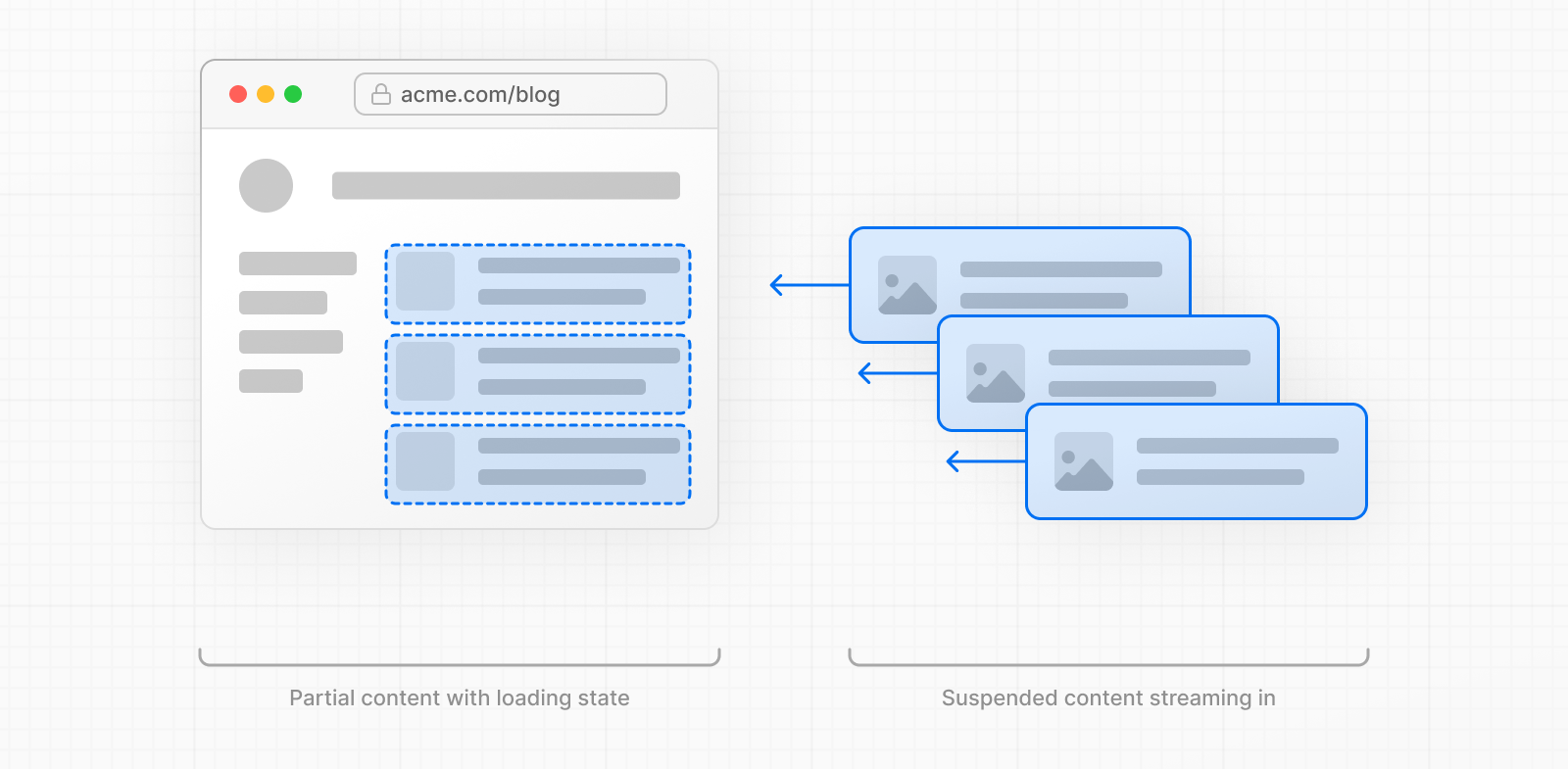
There are two ways you can leverage streaming in your application:
- Wrapping a page with a
loading.jsfile - Wrapping a component with
<Suspense>
With loading.js
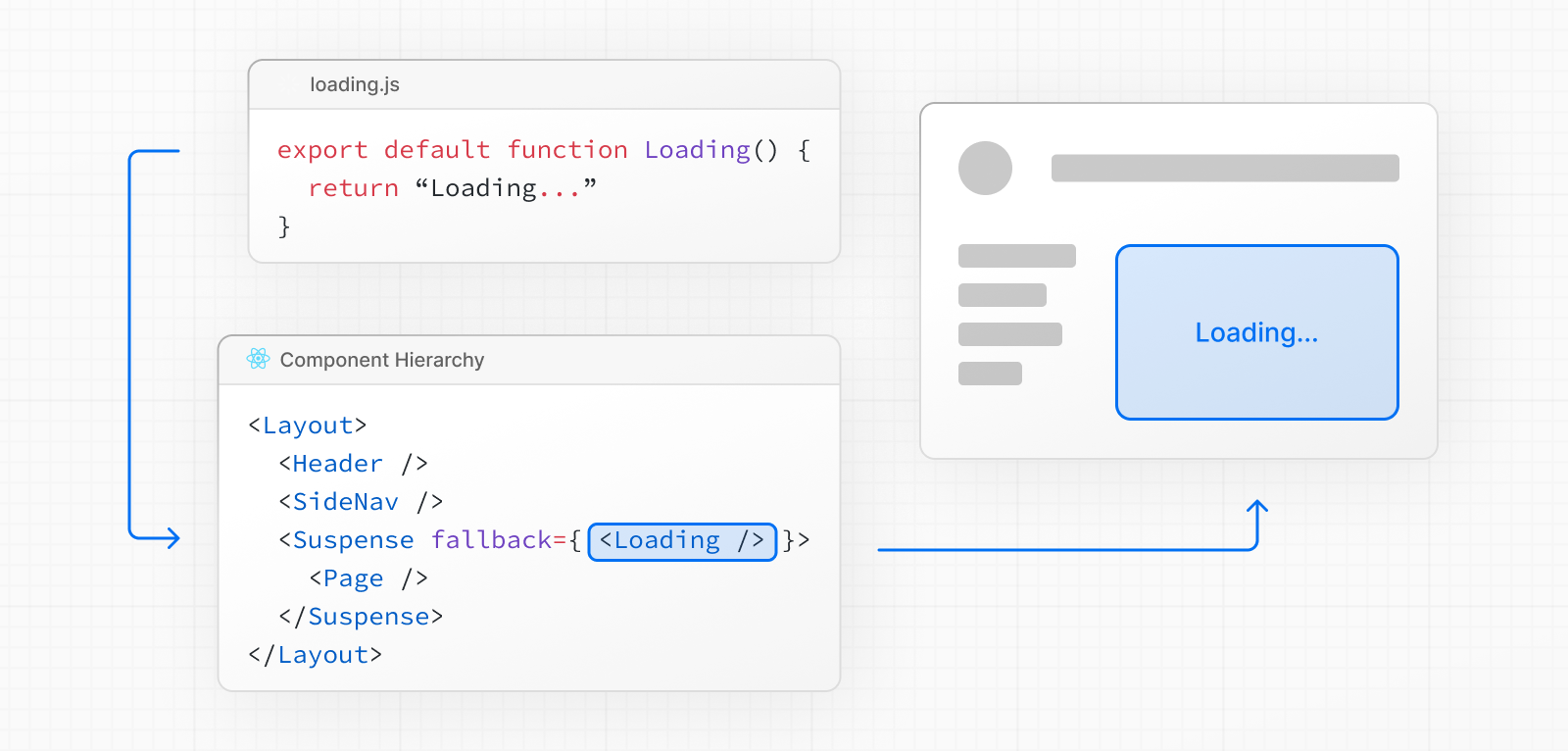
You can create a loading.js file in the same folder as your page to stream the entire page while the data is being fetched. For example, to stream app/blog/page.js, add the file inside the app/blog folder.

export default function Loading() {
  // Define the Loading UI here
  return <div>Loading...</div>;
}
export default function Loading() {
  // Define the Loading UI here
  return <div>Loading...</div>;
}
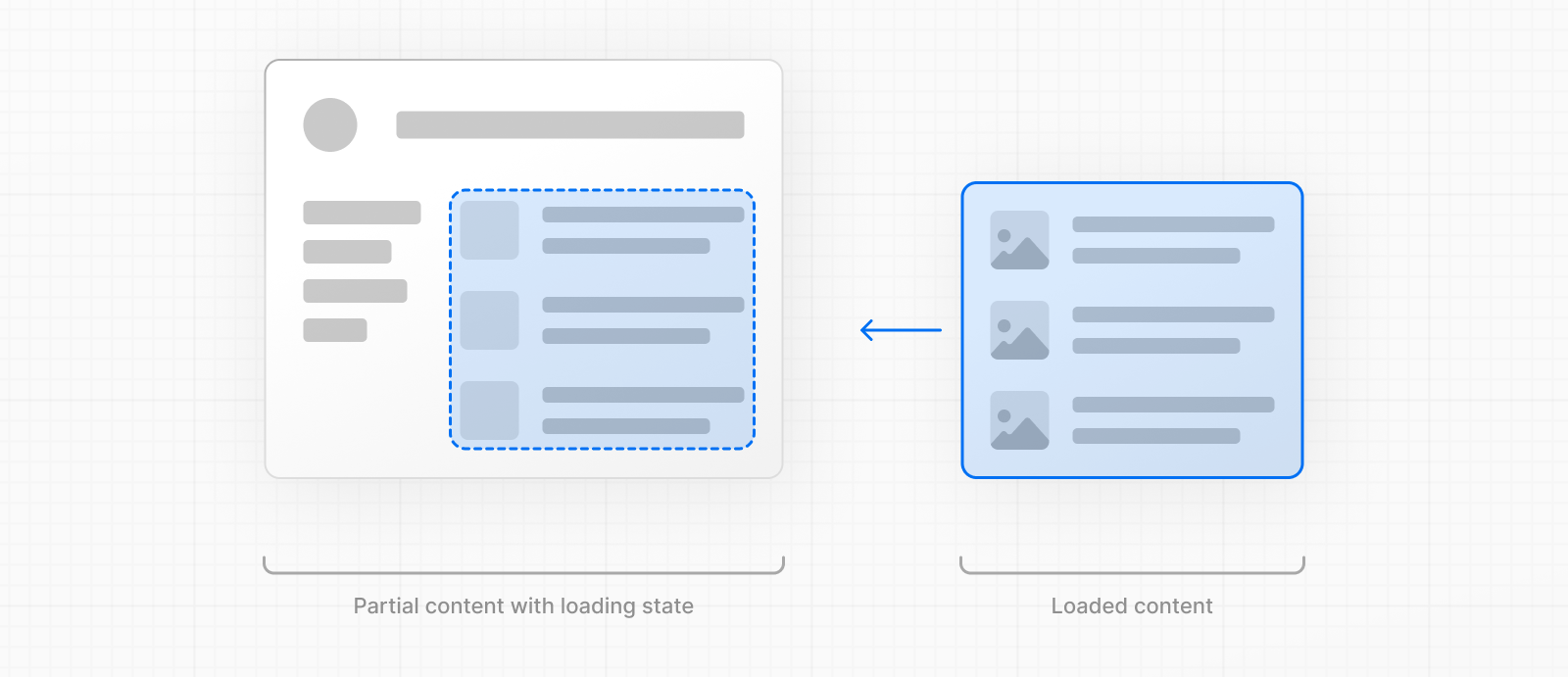
On navigation, the user will immediately see the layout and a loading state while the page is being rendered. The new content will then be automatically swapped in once rendering is complete.
Behind-the-scenes, loading.js will be nested inside layout.js, and will automatically wrap the page.js file and any children below in a <Suspense> boundary.
This approach works well for route segments (layouts and pages), but for more granular streaming, you can use <Suspense>.
With <Suspense>
<Suspense> allows you to be more granular about what parts of the page to stream. For example, you can immediately show any page content that falls outside of the <Suspense> boundary, and stream in the list of blog posts inside the boundary.
import { Suspense } from 'react';
import BlogList from '@/components/BlogList';
import BlogListSkeleton from '@/components/BlogListSkeleton';

export default function BlogPage() {
  return (
    <div>
      {/* This content will be sent to the client immediately */}
      <header>
        <h1>Welcome to the Blog</h1>
        <p>Read the latest posts below.</p>
      </header>
      <main>
        {/* If there's any dynamic content inside this boundary, it will be streamed in */}
        <Suspense fallback={<BlogListSkeleton />}>
          <BlogList />
        </Suspense>
      </main>
    </div>
  );
}
import { Suspense } from 'react';
import BlogList from '@/components/BlogList';
import BlogListSkeleton from '@/components/BlogListSkeleton';

export default function BlogPage() {
  return (
    <div>
      {/* This content will be sent to the client immediately */}
      <header>
        <h1>Welcome to the Blog</h1>
        <p>Read the latest posts below.</p>
      </header>
      <main>
        {/* If there's any dynamic content inside this boundary, it will be streamed in */}
        <Suspense fallback={<BlogListSkeleton />}>
          <BlogList />
        </Suspense>
      </main>
    </div>
  );
}
Creating meaningful loading states
An instant loading state is fallback UI that is shown immediately to the user after navigation. For the best user experience, we recommend designing loading states that are meaningful and help users understand the app is responding. For example, you can use skeletons and spinners, or a small but meaningful part of future screens such as a cover photo, title, etc.
In development, you can preview and inspect the loading state of your components using the React Devtools.
Examples
Sequential data fetching
Sequential data fetching happens when one request depends on data from another.
For example, <Playlists> can only fetch data after <Artist> completes because it needs the artistID:
export default async function Page({ params }: { params: Promise<{ username: string }> }) {
  const { username } = await params;
  // Get artist information
  const artist = await getArtist(username);

  return (
    <>
      <h1>{artist.name}</h1>
      {/* Show fallback UI while the Playlists component is loading */}
      <Suspense fallback={<div>Loading...</div>}>
        {/* Pass the artist ID to the Playlists component */}
        <Playlists artistID={artist.id} />
      </Suspense>
    </>
  );
}

async function Playlists({ artistID }: { artistID: string }) {
  // Use the artist ID to fetch playlists
  const playlists = await getArtistPlaylists(artistID);

  return (
    <ul>
      {playlists.map((playlist) => (
        <li key={playlist.id}>{playlist.name}</li>
      ))}
    </ul>
  );
}
export default async function Page({ params }) {
  const { username } = await params;
  // Get artist information
  const artist = await getArtist(username);

  return (
    <>
      <h1>{artist.name}</h1>
      {/* Show fallback UI while the Playlists component is loading */}
      <Suspense fallback={<div>Loading...</div>}>
        {/* Pass the artist ID to the Playlists component */}
        <Playlists artistID={artist.id} />
      </Suspense>
    </>
  );
}

async function Playlists({ artistID }) {
  // Use the artist ID to fetch playlists
  const playlists = await getArtistPlaylists(artistID);

  return (
    <ul>
      {playlists.map((playlist) => (
        <li key={playlist.id}>{playlist.name}</li>
      ))}
    </ul>
  );
}
In this example, <Suspense> allows the playlists to stream in after the artist data loads. However, the page still waits for the artist data before displaying anything. To prevent this, you can wrap the entire page component in a <Suspense> boundary (for example, using a loading.js file) to show a loading state immediately.
Ensure your data source can resolve the first request quickly, as it blocks everything else. If you can't optimize the request further, consider caching the result if the data changes infrequently.
Parallel data fetching
Parallel data fetching happens when data requests in a route are eagerly initiated and start at the same time.
By default, layouts and pages are rendered in parallel. So each segment starts fetching data as soon as possible.
However, within any component, multiple async/await requests can still be sequential if placed after the other. For example, getAlbums will be blocked until getArtist is resolved:
import { getArtist, getAlbums } from '@/app/lib/data';

export default async function Page({ params }) {
  // These requests will be sequential
  const { username } = await params;
  const artist = await getArtist(username);
  const albums = await getAlbums(username);
  return <div>{artist.name}</div>;
}
Start multiple requests by calling fetch, then await them with Promise.all. Requests begin as soon as fetch is called.
import Albums from './albums';

async function getArtist(username: string) {
  const res = await fetch(`https://api.example.com/artist/${username}`);
  return res.json();
}

async function getAlbums(username: string) {
  const res = await fetch(`https://api.example.com/artist/${username}/albums`);
  return res.json();
}

export default async function Page({ params }: { params: Promise<{ username: string }> }) {
  const { username } = await params;

  // Initiate requests
  const artistData = getArtist(username);
  const albumsData = getAlbums(username);

  const [artist, albums] = await Promise.all([artistData, albumsData]);

  return (
    <>
      <h1>{artist.name}</h1>
      <Albums list={albums} />
    </>
  );
}
import Albums from './albums';

async function getArtist(username) {
  const res = await fetch(`https://api.example.com/artist/${username}`);
  return res.json();
}

async function getAlbums(username) {
  const res = await fetch(`https://api.example.com/artist/${username}/albums`);
  return res.json();
}

export default async function Page({ params }) {
  const { username } = await params;

  // Initiate requests
  const artistData = getArtist(username);
  const albumsData = getAlbums(username);

  const [artist, albums] = await Promise.all([artistData, albumsData]);

  return (
    <>
      <h1>{artist.name}</h1>
      <Albums list={albums} />
    </>
  );
}
Good to know: If one request fails when using
Promise.all, the entire operation will fail. To handle this, you can use thePromise.allSettledmethod instead.
Preloading data
You can preload data by creating a utility function that you eagerly call above blocking requests. <Item> conditionally renders based on the checkIsAvailable() function.
You can call preload() before checkIsAvailable() to eagerly initiate <Item/> data dependencies. By the time <Item/> is rendered, its data has already been fetched.
import { getItem, checkIsAvailable } from '@/lib/data';

export default async function Page({ params }: { params: Promise<{ id: string }> }) {
  const { id } = await params;
  // starting loading item data
  preload(id);
  // perform another asynchronous task
  const isAvailable = await checkIsAvailable();

  return isAvailable ? <Item id={id} /> : null;
}

const preload = (id: string) => {
  // void evaluates the given expression and returns undefined
  // https://developer.mozilla.org/docs/Web/JavaScript/Reference/Operators/void
  void getItem(id);
};

export async function Item({ id }: { id: string }) {
  const result = await getItem(id);
  // ...
}
import { getItem, checkIsAvailable } from '@/lib/data'

export default async function Page({ params }) {
  const { id } = await params
  // starting loading item data
  preload(id)
  // perform another asynchronous task
  const isAvailable = await checkIsAvailable()

  return isAvailable ? <Item id={id} /> : null
}

const preload = (id) => {
  // void evaluates the given expression and returns undefined
  // https://developer.mozilla.org/docs/Web/JavaScript/Reference/Operators/void
  void getItem(id)
}

export async function Item({ id }) {
  const result = await getItem(id)
  // ...
Additionally, you can use React's cache function and the server-only package to create a reusable utility function. This approach allows you to cache the data fetching function and ensure that it's only executed on the server.
import { cache } from 'react';
import 'server-only';
import { getItem } from '@/lib/data';

export const preload = (id: string) => {
  void getItem(id);
};

export const getItem = cache(async (id: string) => {
  // ...
});
import { cache } from 'react';
import 'server-only';
import { getItem } from '@/lib/data';

export const preload = (id) => {
  void getItem(id);
};

export const getItem = cache(async (id) => {
  // ...
});
Fetching data
탭을 전환하여 Server Component에서 사용 가능한 3가지 데이터 소스의 코드 패턴과 특성을 비교해보세요.
- async 함수로 컴포넌트를 정의하고 await로 데이터를 가져옵니다
- fetch, ORM/DB, fs 등 모든 비동기 I/O가 서버에서 안전하게 실행됩니다
- 각 방식마다 캐싱·메모이제이션 지원 범위가 다릅니다
왜 필요한가: 데이터 소스에 따라 캐싱 전략이 달라지므로, 특성을 이해해야 최적 성능을 낼 수 있습니다.
언제 사용하는가: Server Component에서 데이터를 가져올 때 fetch/ORM/fs 중 어떤 방식을 선택할지 결정할 때
코드 패턴
export default async function Page() {
  const data = await fetch('https://api.vercel.app/blog')
  const posts = await data.json()
  return (
    <ul>
      {posts.map((post) => (
        <li key={post.id}>{post.title}</li>
      ))}
    </ul>
  )
}
특성
브라우저 표준 fetch를 서버에서 실행. Next.js가 자동으로 요청 메모이제이션 및 Data Cache를 지원합니다.
fetch 응답은 기본적으로 캐시되지 않습니다. pre-render된 라우트의 출력만 캐시됩니다. cache: "no-store"로 동적 렌더링을 선택할 수 있습니다.
데이터 흐름
Server Component
async function
fetch API
await
HTML
RSC Payload
핵심: Server Component는 서버에서만 실행되므로 fetch, db.select(), fs.readFile() 모두 안전합니다. 클라이언트 번들에 포함되지 않아 API 키나 DB 접속 정보도 노출되지 않습니다.
Fetching data
탭을 전환하여 Client Component의 두 가지 데이터 fetching 방식을 비교해보세요. 코드 패턴과 데이터 흐름이 어떻게 다른지 확인할 수 있습니다.
- use() API는 서버에서 시작한 Promise를 클라이언트에서 unwrap합니다
- SWR/React Query는 클라이언트에서 직접 fetch하며 캐싱을 자체 관리합니다
- use()는 SSR 스트리밍과 자연스럽게 통합됩니다
왜 필요한가: 초기 로드 성능(서버 스트리밍)과 클라이언트 인터랙션(실시간 갱신) 중 무엇을 우선할지에 따라 접근법이 달라집니다.
언제 사용하는가: Client Component에서 외부 데이터를 표시해야 할 때
서버에서 시작한 Promise를 클라이언트로 전달합니다. Suspense boundary와 결합하여 스트리밍을 구현합니다.
Server
// Server Component (page.tsx)
export default function Page() {
  // await 하지 않음 — Promise 전달
  const posts = getPosts()

  return (
    <Suspense fallback={<div>Loading...</div>}>
      <Posts posts={posts} />
    </Suspense>
  )
}
Client
// Client Component (posts.tsx)
'use client'
import { use } from 'react'

export default function Posts({
  posts
}: {
  posts: Promise<Post[]>
}) {
  const allPosts = use(posts)
  return (
    <ul>
      {allPosts.map((post) => (
        <li key={post.id}>{post.title}</li>
      ))}
    </ul>
  )
}
데이터 흐름
- 1Server Component에서 fetch 시작 (await 없이)
- 2Promise를 Client Component prop으로 전달
- 3Suspense fallback 즉시 표시
- 4Client에서 use()로 Promise resolve
- 5실제 콘텐츠로 교체
핵심: use() API에서는 <Suspense> boundary가 필수입니다. boundary 없이 사용하면 Promise가 resolve될 때까지 전체 트리가 중단됩니다.
Streaming
loading.tsx 체크박스를 토글한 뒤 '이동' 버튼을 눌러보세요. loading.js 유무에 따라 네비게이션 경험이 어떻게 달라지는지 확인할 수 있습니다.
- loading.js는 같은 폴더의 page.js를 자동으로 <Suspense>로 감쌉니다
- 네비게이션 즉시 loading UI가 표시되고, 데이터 로드 완료 시 교체됩니다
- layout은 loading 상태와 무관하게 유지됩니다
왜 필요한가: 사용자가 빈 화면 대신 즉각적인 로딩 피드백을 받을 수 있습니다.
언제 사용하는가: 라우트 세그먼트 전체의 로딩 상태가 필요할 때
폴더 구조
app/
blog/
layout.tsx
loading.tsx ← 로딩 UI
page.tsx
내부 동작
<Layout>
  <Suspense fallback={<Loading />}>
    <Page />   ← 자동 래핑
  </Suspense>
</Layout>버튼을 눌러 시뮬레이션을 시작하세요
참고: loading.js는 해당 라우트 세그먼트 단위로 동작합니다. 더 세밀한 스트리밍이 필요하면 <Suspense>를 직접 사용하세요.
Streaming
'스트리밍 시작' 버튼을 눌러보세요. 동기 콘텐츠는 즉시 보이고, 비동기 컴포넌트는 각자의 Suspense boundary에서 독립적으로 로드되는 과정을 관찰할 수 있습니다.
- <Suspense> 바깥의 콘텐츠는 즉시 렌더됩니다
- boundary 안의 비동기 컴포넌트는 fallback 표시 후 스트리밍됩니다
- 여러 Suspense boundary는 각각 독립적으로 resolve됩니다
왜 필요한가: 페이지 전체를 블로킹하지 않고, 준비된 부분부터 보여줄 수 있습니다.
언제 사용하는가: 특정 컴포넌트만 느린 데이터에 의존할 때, 나머지를 먼저 보여주고 싶을 때
스트리밍 시작 버튼을 눌러보세요
핵심: 동기 콘텐츠(Header, Description)는 즉시 보이고, 비동기 데이터(BlogList, Sidebar)는 각각의 <Suspense> boundary에서 독립적으로 resolve됩니다.
Streaming
3가지 로딩 스타일을 전환하며 사용자 경험의 차이를 직접 느껴보세요. '로드 완료' 토글로 전환 효과도 확인할 수 있습니다.
- 스피너는 가장 단순하지만 콘텐츠 구조 정보를 제공하지 않습니다
- 스켈레톤은 최종 레이아웃을 미리 보여줘 체감 속도를 높입니다
- 의미 있는 프리뷰는 실제 콘텐츠 일부(제목, 이미지)를 포함합니다
왜 필요한가: 로딩 상태의 품질이 사용자의 체감 성능에 직접적인 영향을 줍니다.
언제 사용하는가: Suspense fallback이나 loading.js를 디자인할 때
최종 레이아웃과 유사한 회색 블록. 사용자가 콘텐츠 구조를 예측할 수 있습니다.
UX: 보통팁: loading.js나 <Suspense fallback>에 스켈레톤 UI를 넣으면, 사용자가 콘텐츠 구조를 미리 파악하여 체감 로딩 시간이 줄어듭니다. React DevTools에서 Suspense 컴포넌트의 로딩 상태를 미리 확인할 수 있습니다.
Examples
시뮬레이션을 실행하여 순차(Sequential) 데이터 fetching의 워터폴 현상을 관찰해보세요. getPlaylists()는 getArtist()가 완료된 후에야 시작됩니다.
- 하나의 요청이 다른 요청의 결과에 의존하면 순차 실행됩니다
- 워터폴로 인해 전체 소요 시간이 각 요청의 합이 됩니다
- Suspense를 사용하면 첫 번째 결과를 먼저 보여줄 수 있습니다
왜 필요한가: 의존적 데이터 요청은 불가피하지만, Suspense로 첫 번째 결과를 즉시 표시하여 체감 속도를 개선할 수 있습니다.
언제 사용하는가: Playlists가 artistID에 의존하는 것처럼, 후속 요청이 이전 결과에 의존할 때
네트워크 워터폴
총 소요: 1500ms + 2000ms = 3500ms (순차)
개선 방법: <Suspense>로 <Playlists>를 감싸면 Artist 정보가 먼저 표시됩니다. 첫 번째 요청을 최적화하거나, 데이터가 자주 변하지 않으면 캐싱을 적용하세요.
Examples
모드를 전환하고 시뮬레이션을 실행해보세요. 병렬 fetching이 순차 대비 얼마나 빠른지 워터폴 차트로 직접 비교할 수 있습니다.
- 독립적인 요청은 Promise.all()로 동시 시작할 수 있습니다
- 병렬 실행 시 전체 시간 = max(개별 시간), 순차 시 = sum(개별 시간)
- Promise.all은 하나라도 실패하면 전체 실패 — Promise.allSettled 고려
왜 필요한가: 독립적인 fetch를 순차로 실행하면 불필요한 워터폴이 발생합니다. 병렬로 전환하면 체감 속도가 크게 향상됩니다.
언제 사용하는가: 여러 API를 호출하는데 서로 의존성이 없을 때
순차 코드
const artist = await getArtist(name)
const albums = await getAlbums(name)
// 총 3000ms
병렬 코드
const artistData = getArtist(name)
const albumsData = getAlbums(name)
const [artist, albums] =
  await Promise.all([artistData, albumsData])
// 총 1800ms
워터폴
주의: Promise.all()은 하나라도 실패하면 전체가 reject됩니다. 개별 실패를 허용하려면 Promise.allSettled()를 사용하세요.
Examples
프리로드 토글을 변경한 뒤 시뮬레이션을 실행하세요. preload()가 데이터 요청을 미리 시작하여 전체 소요 시간을 줄이는 과정을 타임라인으로 확인할 수 있습니다.
- preload()는 void getItem(id)로 fetch를 미리 시작합니다
- checkIsAvailable() 실행 동안 getItem은 이미 fetching 중입니다
- React cache()로 감싸면 동일한 인자의 중복 호출을 방지합니다
왜 필요한가: 조건부 렌더링 전에 데이터 로드를 시작하면, 조건 확인이 끝났을 때 데이터가 이미 준비되어 있을 수 있습니다.
언제 사용하는가: 다른 비동기 작업(권한 체크 등) 후에 데이터를 렌더해야 하지만, 데이터 로드를 미리 시작하고 싶을 때
preload 사용
preload(id)  // void getItem(id)
const isAvailable = await checkIsAvailable()
// getItem은 이미 실행 중!
return isAvailable ? <Item id={id} /> : null
preload 미사용
const isAvailable = await checkIsAvailable()
// 여기서야 getItem 시작
return isAvailable ? <Item id={id} /> : null
타임라인
핵심: void getItem(id)는 Promise를 반환하지 않고 즉시 실행합니다. React cache()와 server-only를 결합하면 서버에서만 실행되는 재사용 가능한 preload 유틸리티를 만들 수 있습니다.
This page will walk you through how you can fetch data in Server and Client Components, and how to stream components that depend on data.
Fetching data
Server Components
You can fetch data in Server Components using any asynchronous I/O, such as:
- The
fetchAPI - An ORM or database
- Reading from the filesystem using Node.js APIs like
fs
With the fetch API
To fetch data with the fetch API, turn your component into an asynchronous function, and await the fetch call. For example:
export default async function Page() {
  const data = await fetch('https://api.vercel.app/blog');
  const posts = await data.json();
  return (
    <ul>
      {posts.map((post) => (
        <li key={post.id}>{post.title}</li>
      ))}
    </ul>
  );
}
export default async function Page() {
  const data = await fetch('https://api.vercel.app/blog');
  const posts = await data.json();
  return (
    <ul>
      {posts.map((post) => (
        <li key={post.id}>{post.title}</li>
      ))}
    </ul>
  );
}
Good to know:
fetchresponses are not cached by default. However, Next.js will pre-render the route and the output will be cached for improved performance. If you'd like to opt into dynamic rendering, use the{ cache: 'no-store' }option. See thefetchAPI Reference.- During development, you can log
fetchcalls for better visibility and debugging. See theloggingAPI reference.
With an ORM or database
Since Server Components are rendered on the server, you can safely make database queries using an ORM or database client. Turn your component into an asynchronous function, and await the call:
import { db, posts } from '@/lib/db';

export default async function Page() {
  const allPosts = await db.select().from(posts);
  return (
    <ul>
      {allPosts.map((post) => (
        <li key={post.id}>{post.title}</li>
      ))}
    </ul>
  );
}
import { db, posts } from '@/lib/db';

export default async function Page() {
  const allPosts = await db.select().from(posts);
  return (
    <ul>
      {allPosts.map((post) => (
        <li key={post.id}>{post.title}</li>
      ))}
    </ul>
  );
}
Client Components
There are two ways to fetch data in Client Components, using:
- React's
useAPI - A community library like SWR or React Query
Streaming data with the use API
You can use React's use API to stream data from the server to client. Start by fetching data in your Server component, and pass the promise to your Client Component as prop:
import Posts from '@/app/ui/posts';
import { Suspense } from 'react';

export default function Page() {
  // Don't await the data fetching function
  const posts = getPosts();

  return (
    <Suspense fallback={<div>Loading...</div>}>
      <Posts posts={posts} />
    </Suspense>
  );
}
import Posts from '@/app/ui/posts';
import { Suspense } from 'react';

export default function Page() {
  // Don't await the data fetching function
  const posts = getPosts();

  return (
    <Suspense fallback={<div>Loading...</div>}>
      <Posts posts={posts} />
    </Suspense>
  );
}
Then, in your Client Component, use the use API to read the promise:
'use client';
import { use } from 'react';

export default function Posts({ posts }: { posts: Promise<{ id: string; title: string }[]> }) {
  const allPosts = use(posts);

  return (
    <ul>
      {allPosts.map((post) => (
        <li key={post.id}>{post.title}</li>
      ))}
    </ul>
  );
}
'use client';
import { use } from 'react';

export default function Posts({ posts }) {
  const allPosts = use(posts);

  return (
    <ul>
      {allPosts.map((post) => (
        <li key={post.id}>{post.title}</li>
      ))}
    </ul>
  );
}
In the example above, the <Posts> component is wrapped in a <Suspense> boundary. This means the fallback will be shown while the promise is being resolved. Learn more about streaming.
Community libraries
You can use a community library like SWR or React Query to fetch data in Client Components. These libraries have their own semantics for caching, streaming, and other features. For example, with SWR:
'use client';
import useSWR from 'swr';

const fetcher = (url) => fetch(url).then((r) => r.json());

export default function BlogPage() {
  const { data, error, isLoading } = useSWR('https://api.vercel.app/blog', fetcher);

  if (isLoading) return <div>Loading...</div>;
  if (error) return <div>Error: {error.message}</div>;

  return (
    <ul>
      {data.map((post: { id: string; title: string }) => (
        <li key={post.id}>{post.title}</li>
      ))}
    </ul>
  );
}
'use client';

import useSWR from 'swr';

const fetcher = (url) => fetch(url).then((r) => r.json());

export default function BlogPage() {
  const { data, error, isLoading } = useSWR('https://api.vercel.app/blog', fetcher);

  if (isLoading) return <div>Loading...</div>;
  if (error) return <div>Error: {error.message}</div>;

  return (
    <ul>
      {data.map((post) => (
        <li key={post.id}>{post.title}</li>
      ))}
    </ul>
  );
}
Deduplicate requests and cache data
One way to deduplicate fetch requests is with request memoization. With this mechanism, fetch calls using GET or HEAD with the same URL and options in a single render pass are combined into one request. This happens automatically, and you can opt out by passing an Abort signal to fetch.
Request memoization is scoped to the lifetime of a request.
You can also deduplicate fetch requests by using Next.js’ Data Cache, for example by setting cache: 'force-cache' in your fetch options.
Data Cache allows sharing data across the current render pass and incoming requests.
If you are not using fetch, and instead using an ORM or database directly, you can wrap your data access with the React cache function.
import { cache } from 'react';
import { db, posts, eq } from '@/lib/db';

export const getPost = cache(async (id: string) => {
  const post = await db.query.posts.findFirst({
    where: eq(posts.id, parseInt(id)),
  });
});
import { cache } from 'react';
import { db, posts, eq } from '@/lib/db';
import { notFound } from 'next/navigation';

export const getPost = cache(async (id) => {
  const post = await db.query.posts.findFirst({
    where: eq(posts.id, parseInt(id)),
  });
});
Streaming
Warning: The content below assumes the
cacheComponentsconfig option is enabled in your application. The flag was introduced in Next.js 15 canary.
When you fetch data in Server Components, the data is fetched and rendered on the server for each request. If you have any slow data requests, the whole route will be blocked from rendering until all the data is fetched.
To improve the initial load time and user experience, you can use streaming to break up the page's HTML into smaller chunks and progressively send those chunks from the server to the client.
There are two ways you can leverage streaming in your application:
- Wrapping a page with a
loading.jsfile - Wrapping a component with
<Suspense>
With loading.js
You can create a loading.js file in the same folder as your page to stream the entire page while the data is being fetched. For example, to stream app/blog/page.js, add the file inside the app/blog folder.
export default function Loading() {
  // Define the Loading UI here
  return <div>Loading...</div>;
}
export default function Loading() {
  // Define the Loading UI here
  return <div>Loading...</div>;
}
On navigation, the user will immediately see the layout and a loading state while the page is being rendered. The new content will then be automatically swapped in once rendering is complete.
Behind-the-scenes, loading.js will be nested inside layout.js, and will automatically wrap the page.js file and any children below in a <Suspense> boundary.
This approach works well for route segments (layouts and pages), but for more granular streaming, you can use <Suspense>.
With <Suspense>
<Suspense> allows you to be more granular about what parts of the page to stream. For example, you can immediately show any page content that falls outside of the <Suspense> boundary, and stream in the list of blog posts inside the boundary.
import { Suspense } from 'react';
import BlogList from '@/components/BlogList';
import BlogListSkeleton from '@/components/BlogListSkeleton';

export default function BlogPage() {
  return (
    <div>
      {/* This content will be sent to the client immediately */}
      <header>
        <h1>Welcome to the Blog</h1>
        <p>Read the latest posts below.</p>
      </header>
      <main>
        {/* If there's any dynamic content inside this boundary, it will be streamed in */}
        <Suspense fallback={<BlogListSkeleton />}>
          <BlogList />
        </Suspense>
      </main>
    </div>
  );
}
import { Suspense } from 'react';
import BlogList from '@/components/BlogList';
import BlogListSkeleton from '@/components/BlogListSkeleton';

export default function BlogPage() {
  return (
    <div>
      {/* This content will be sent to the client immediately */}
      <header>
        <h1>Welcome to the Blog</h1>
        <p>Read the latest posts below.</p>
      </header>
      <main>
        {/* If there's any dynamic content inside this boundary, it will be streamed in */}
        <Suspense fallback={<BlogListSkeleton />}>
          <BlogList />
        </Suspense>
      </main>
    </div>
  );
}
Creating meaningful loading states
An instant loading state is fallback UI that is shown immediately to the user after navigation. For the best user experience, we recommend designing loading states that are meaningful and help users understand the app is responding. For example, you can use skeletons and spinners, or a small but meaningful part of future screens such as a cover photo, title, etc.
In development, you can preview and inspect the loading state of your components using the React Devtools.
Examples
Sequential data fetching
Sequential data fetching happens when one request depends on data from another.
For example, <Playlists> can only fetch data after <Artist> completes because it needs the artistID:
export default async function Page({ params }: { params: Promise<{ username: string }> }) {
  const { username } = await params;
  // Get artist information
  const artist = await getArtist(username);

  return (
    <>
      <h1>{artist.name}</h1>
      {/* Show fallback UI while the Playlists component is loading */}
      <Suspense fallback={<div>Loading...</div>}>
        {/* Pass the artist ID to the Playlists component */}
        <Playlists artistID={artist.id} />
      </Suspense>
    </>
  );
}

async function Playlists({ artistID }: { artistID: string }) {
  // Use the artist ID to fetch playlists
  const playlists = await getArtistPlaylists(artistID);

  return (
    <ul>
      {playlists.map((playlist) => (
        <li key={playlist.id}>{playlist.name}</li>
      ))}
    </ul>
  );
}
export default async function Page({ params }) {
  const { username } = await params;
  // Get artist information
  const artist = await getArtist(username);

  return (
    <>
      <h1>{artist.name}</h1>
      {/* Show fallback UI while the Playlists component is loading */}
      <Suspense fallback={<div>Loading...</div>}>
        {/* Pass the artist ID to the Playlists component */}
        <Playlists artistID={artist.id} />
      </Suspense>
    </>
  );
}

async function Playlists({ artistID }) {
  // Use the artist ID to fetch playlists
  const playlists = await getArtistPlaylists(artistID);

  return (
    <ul>
      {playlists.map((playlist) => (
        <li key={playlist.id}>{playlist.name}</li>
      ))}
    </ul>
  );
}
In this example, <Suspense> allows the playlists to stream in after the artist data loads. However, the page still waits for the artist data before displaying anything. To prevent this, you can wrap the entire page component in a <Suspense> boundary (for example, using a loading.js file) to show a loading state immediately.
Ensure your data source can resolve the first request quickly, as it blocks everything else. If you can't optimize the request further, consider caching the result if the data changes infrequently.
Parallel data fetching
Parallel data fetching happens when data requests in a route are eagerly initiated and start at the same time.
By default, layouts and pages are rendered in parallel. So each segment starts fetching data as soon as possible.
However, within any component, multiple async/await requests can still be sequential if placed after the other. For example, getAlbums will be blocked until getArtist is resolved:
import { getArtist, getAlbums } from '@/app/lib/data';

export default async function Page({ params }) {
  // These requests will be sequential
  const { username } = await params;
  const artist = await getArtist(username);
  const albums = await getAlbums(username);
  return <div>{artist.name}</div>;
}
Start multiple requests by calling fetch, then await them with Promise.all. Requests begin as soon as fetch is called.
import Albums from './albums';

async function getArtist(username: string) {
  const res = await fetch(`https://api.example.com/artist/${username}`);
  return res.json();
}

async function getAlbums(username: string) {
  const res = await fetch(`https://api.example.com/artist/${username}/albums`);
  return res.json();
}

export default async function Page({ params }: { params: Promise<{ username: string }> }) {
  const { username } = await params;

  // Initiate requests
  const artistData = getArtist(username);
  const albumsData = getAlbums(username);

  const [artist, albums] = await Promise.all([artistData, albumsData]);

  return (
    <>
      <h1>{artist.name}</h1>
      <Albums list={albums} />
    </>
  );
}
import Albums from './albums';

async function getArtist(username) {
  const res = await fetch(`https://api.example.com/artist/${username}`);
  return res.json();
}

async function getAlbums(username) {
  const res = await fetch(`https://api.example.com/artist/${username}/albums`);
  return res.json();
}

export default async function Page({ params }) {
  const { username } = await params;

  // Initiate requests
  const artistData = getArtist(username);
  const albumsData = getAlbums(username);

  const [artist, albums] = await Promise.all([artistData, albumsData]);

  return (
    <>
      <h1>{artist.name}</h1>
      <Albums list={albums} />
    </>
  );
}
Good to know: If one request fails when using
Promise.all, the entire operation will fail. To handle this, you can use thePromise.allSettledmethod instead.
Preloading data
You can preload data by creating a utility function that you eagerly call above blocking requests. <Item> conditionally renders based on the checkIsAvailable() function.
You can call preload() before checkIsAvailable() to eagerly initiate <Item/> data dependencies. By the time <Item/> is rendered, its data has already been fetched.
import { getItem, checkIsAvailable } from '@/lib/data';

export default async function Page({ params }: { params: Promise<{ id: string }> }) {
  const { id } = await params;
  // starting loading item data
  preload(id);
  // perform another asynchronous task
  const isAvailable = await checkIsAvailable();

  return isAvailable ? <Item id={id} /> : null;
}

const preload = (id: string) => {
  // void evaluates the given expression and returns undefined
  // https://developer.mozilla.org/docs/Web/JavaScript/Reference/Operators/void
  void getItem(id);
};

export async function Item({ id }: { id: string }) {
  const result = await getItem(id);
  // ...
}
import { getItem, checkIsAvailable } from '@/lib/data'

export default async function Page({ params }) {
  const { id } = await params
  // starting loading item data
  preload(id)
  // perform another asynchronous task
  const isAvailable = await checkIsAvailable()

  return isAvailable ? <Item id={id} /> : null
}

const preload = (id) => {
  // void evaluates the given expression and returns undefined
  // https://developer.mozilla.org/docs/Web/JavaScript/Reference/Operators/void
  void getItem(id)
}

export async function Item({ id }) {
  const result = await getItem(id)
  // ...
Additionally, you can use React's cache function and the server-only package to create a reusable utility function. This approach allows you to cache the data fetching function and ensure that it's only executed on the server.
import { cache } from 'react';
import 'server-only';
import { getItem } from '@/lib/data';

export const preload = (id: string) => {
  void getItem(id);
};

export const getItem = cache(async (id: string) => {
  // ...
});
import { cache } from 'react';
import 'server-only';
import { getItem } from '@/lib/data';

export const preload = (id) => {
  void getItem(id);
};

export const getItem = cache(async (id) => {
  // ...
});
Fetching data
탭을 전환하여 Server Component에서 사용 가능한 3가지 데이터 소스의 코드 패턴과 특성을 비교해보세요.
- async 함수로 컴포넌트를 정의하고 await로 데이터를 가져옵니다
- fetch, ORM/DB, fs 등 모든 비동기 I/O가 서버에서 안전하게 실행됩니다
- 각 방식마다 캐싱·메모이제이션 지원 범위가 다릅니다
왜 필요한가: 데이터 소스에 따라 캐싱 전략이 달라지므로, 특성을 이해해야 최적 성능을 낼 수 있습니다.
언제 사용하는가: Server Component에서 데이터를 가져올 때 fetch/ORM/fs 중 어떤 방식을 선택할지 결정할 때
코드 패턴
export default async function Page() {
  const data = await fetch('https://api.vercel.app/blog')
  const posts = await data.json()
  return (
    <ul>
      {posts.map((post) => (
        <li key={post.id}>{post.title}</li>
      ))}
    </ul>
  )
}
특성
브라우저 표준 fetch를 서버에서 실행. Next.js가 자동으로 요청 메모이제이션 및 Data Cache를 지원합니다.
fetch 응답은 기본적으로 캐시되지 않습니다. pre-render된 라우트의 출력만 캐시됩니다. cache: "no-store"로 동적 렌더링을 선택할 수 있습니다.
데이터 흐름
Server Component
async function
fetch API
await
HTML
RSC Payload
핵심: Server Component는 서버에서만 실행되므로 fetch, db.select(), fs.readFile() 모두 안전합니다. 클라이언트 번들에 포함되지 않아 API 키나 DB 접속 정보도 노출되지 않습니다.
Fetching data
탭을 전환하여 Client Component의 두 가지 데이터 fetching 방식을 비교해보세요. 코드 패턴과 데이터 흐름이 어떻게 다른지 확인할 수 있습니다.
- use() API는 서버에서 시작한 Promise를 클라이언트에서 unwrap합니다
- SWR/React Query는 클라이언트에서 직접 fetch하며 캐싱을 자체 관리합니다
- use()는 SSR 스트리밍과 자연스럽게 통합됩니다
왜 필요한가: 초기 로드 성능(서버 스트리밍)과 클라이언트 인터랙션(실시간 갱신) 중 무엇을 우선할지에 따라 접근법이 달라집니다.
언제 사용하는가: Client Component에서 외부 데이터를 표시해야 할 때
서버에서 시작한 Promise를 클라이언트로 전달합니다. Suspense boundary와 결합하여 스트리밍을 구현합니다.
Server
// Server Component (page.tsx)
export default function Page() {
  // await 하지 않음 — Promise 전달
  const posts = getPosts()

  return (
    <Suspense fallback={<div>Loading...</div>}>
      <Posts posts={posts} />
    </Suspense>
  )
}
Client
// Client Component (posts.tsx)
'use client'
import { use } from 'react'

export default function Posts({
  posts
}: {
  posts: Promise<Post[]>
}) {
  const allPosts = use(posts)
  return (
    <ul>
      {allPosts.map((post) => (
        <li key={post.id}>{post.title}</li>
      ))}
    </ul>
  )
}
데이터 흐름
- 1Server Component에서 fetch 시작 (await 없이)
- 2Promise를 Client Component prop으로 전달
- 3Suspense fallback 즉시 표시
- 4Client에서 use()로 Promise resolve
- 5실제 콘텐츠로 교체
핵심: use() API에서는 <Suspense> boundary가 필수입니다. boundary 없이 사용하면 Promise가 resolve될 때까지 전체 트리가 중단됩니다.
Streaming
loading.tsx 체크박스를 토글한 뒤 '이동' 버튼을 눌러보세요. loading.js 유무에 따라 네비게이션 경험이 어떻게 달라지는지 확인할 수 있습니다.
- loading.js는 같은 폴더의 page.js를 자동으로 <Suspense>로 감쌉니다
- 네비게이션 즉시 loading UI가 표시되고, 데이터 로드 완료 시 교체됩니다
- layout은 loading 상태와 무관하게 유지됩니다
왜 필요한가: 사용자가 빈 화면 대신 즉각적인 로딩 피드백을 받을 수 있습니다.
언제 사용하는가: 라우트 세그먼트 전체의 로딩 상태가 필요할 때
폴더 구조
app/
blog/
layout.tsx
loading.tsx ← 로딩 UI
page.tsx
내부 동작
<Layout>
  <Suspense fallback={<Loading />}>
    <Page />   ← 자동 래핑
  </Suspense>
</Layout>버튼을 눌러 시뮬레이션을 시작하세요
참고: loading.js는 해당 라우트 세그먼트 단위로 동작합니다. 더 세밀한 스트리밍이 필요하면 <Suspense>를 직접 사용하세요.
Streaming
'스트리밍 시작' 버튼을 눌러보세요. 동기 콘텐츠는 즉시 보이고, 비동기 컴포넌트는 각자의 Suspense boundary에서 독립적으로 로드되는 과정을 관찰할 수 있습니다.
- <Suspense> 바깥의 콘텐츠는 즉시 렌더됩니다
- boundary 안의 비동기 컴포넌트는 fallback 표시 후 스트리밍됩니다
- 여러 Suspense boundary는 각각 독립적으로 resolve됩니다
왜 필요한가: 페이지 전체를 블로킹하지 않고, 준비된 부분부터 보여줄 수 있습니다.
언제 사용하는가: 특정 컴포넌트만 느린 데이터에 의존할 때, 나머지를 먼저 보여주고 싶을 때
스트리밍 시작 버튼을 눌러보세요
핵심: 동기 콘텐츠(Header, Description)는 즉시 보이고, 비동기 데이터(BlogList, Sidebar)는 각각의 <Suspense> boundary에서 독립적으로 resolve됩니다.
Streaming
3가지 로딩 스타일을 전환하며 사용자 경험의 차이를 직접 느껴보세요. '로드 완료' 토글로 전환 효과도 확인할 수 있습니다.
- 스피너는 가장 단순하지만 콘텐츠 구조 정보를 제공하지 않습니다
- 스켈레톤은 최종 레이아웃을 미리 보여줘 체감 속도를 높입니다
- 의미 있는 프리뷰는 실제 콘텐츠 일부(제목, 이미지)를 포함합니다
왜 필요한가: 로딩 상태의 품질이 사용자의 체감 성능에 직접적인 영향을 줍니다.
언제 사용하는가: Suspense fallback이나 loading.js를 디자인할 때
최종 레이아웃과 유사한 회색 블록. 사용자가 콘텐츠 구조를 예측할 수 있습니다.
UX: 보통팁: loading.js나 <Suspense fallback>에 스켈레톤 UI를 넣으면, 사용자가 콘텐츠 구조를 미리 파악하여 체감 로딩 시간이 줄어듭니다. React DevTools에서 Suspense 컴포넌트의 로딩 상태를 미리 확인할 수 있습니다.
Examples
시뮬레이션을 실행하여 순차(Sequential) 데이터 fetching의 워터폴 현상을 관찰해보세요. getPlaylists()는 getArtist()가 완료된 후에야 시작됩니다.
- 하나의 요청이 다른 요청의 결과에 의존하면 순차 실행됩니다
- 워터폴로 인해 전체 소요 시간이 각 요청의 합이 됩니다
- Suspense를 사용하면 첫 번째 결과를 먼저 보여줄 수 있습니다
왜 필요한가: 의존적 데이터 요청은 불가피하지만, Suspense로 첫 번째 결과를 즉시 표시하여 체감 속도를 개선할 수 있습니다.
언제 사용하는가: Playlists가 artistID에 의존하는 것처럼, 후속 요청이 이전 결과에 의존할 때
네트워크 워터폴
총 소요: 1500ms + 2000ms = 3500ms (순차)
개선 방법: <Suspense>로 <Playlists>를 감싸면 Artist 정보가 먼저 표시됩니다. 첫 번째 요청을 최적화하거나, 데이터가 자주 변하지 않으면 캐싱을 적용하세요.
Examples
모드를 전환하고 시뮬레이션을 실행해보세요. 병렬 fetching이 순차 대비 얼마나 빠른지 워터폴 차트로 직접 비교할 수 있습니다.
- 독립적인 요청은 Promise.all()로 동시 시작할 수 있습니다
- 병렬 실행 시 전체 시간 = max(개별 시간), 순차 시 = sum(개별 시간)
- Promise.all은 하나라도 실패하면 전체 실패 — Promise.allSettled 고려
왜 필요한가: 독립적인 fetch를 순차로 실행하면 불필요한 워터폴이 발생합니다. 병렬로 전환하면 체감 속도가 크게 향상됩니다.
언제 사용하는가: 여러 API를 호출하는데 서로 의존성이 없을 때
순차 코드
const artist = await getArtist(name)
const albums = await getAlbums(name)
// 총 3000ms
병렬 코드
const artistData = getArtist(name)
const albumsData = getAlbums(name)
const [artist, albums] =
  await Promise.all([artistData, albumsData])
// 총 1800ms
워터폴
주의: Promise.all()은 하나라도 실패하면 전체가 reject됩니다. 개별 실패를 허용하려면 Promise.allSettled()를 사용하세요.
Examples
프리로드 토글을 변경한 뒤 시뮬레이션을 실행하세요. preload()가 데이터 요청을 미리 시작하여 전체 소요 시간을 줄이는 과정을 타임라인으로 확인할 수 있습니다.
- preload()는 void getItem(id)로 fetch를 미리 시작합니다
- checkIsAvailable() 실행 동안 getItem은 이미 fetching 중입니다
- React cache()로 감싸면 동일한 인자의 중복 호출을 방지합니다
왜 필요한가: 조건부 렌더링 전에 데이터 로드를 시작하면, 조건 확인이 끝났을 때 데이터가 이미 준비되어 있을 수 있습니다.
언제 사용하는가: 다른 비동기 작업(권한 체크 등) 후에 데이터를 렌더해야 하지만, 데이터 로드를 미리 시작하고 싶을 때
preload 사용
preload(id)  // void getItem(id)
const isAvailable = await checkIsAvailable()
// getItem은 이미 실행 중!
return isAvailable ? <Item id={id} /> : null
preload 미사용
const isAvailable = await checkIsAvailable()
// 여기서야 getItem 시작
return isAvailable ? <Item id={id} /> : null
타임라인
핵심: void getItem(id)는 Promise를 반환하지 않고 즉시 실행합니다. React cache()와 server-only를 결합하면 서버에서만 실행되는 재사용 가능한 preload 유틸리티를 만들 수 있습니다.